
![[Translate to Englisch:]](/fileadmin/_processed_/9/c/csm_Mann_am_Laptop_mit_Mobile_in_Hand_bcbc6c199a.jpeg "[Translate to Englisch:]")
Multi factor authentication: Why a password is no longer enough



Why add extra protection to your login? Multi factor authentication makes account takeovers much harder. It protects the weakest point in most logins: the password. Passwords are easy to get wrong. They are often reused, too simple, or exposed through phishing scams. Even if someone knows your password, multi factor authentication can still block access to your account.
What is multi factor authentication, or MFA?
Multi factor authentication, often called two factor authentication or 2FA, means you do not log in with just a password. You also need to provide at least one additional form of proof. Think of it as a second door behind the first one. The password is the key to the first door, and the extra factor is the key to the second. Both keys are needed to open the doors. For attackers, that makes access much more difficult.
The second factor must come from a different category than your password. This is important. The most common categories are:
- Something you know: for example a password or PIN
- Something you have: for example a smartphone, an authenticator app, or a security key
- Something you are: for example your fingerprint or facial recognition
Even if someone gets your password, access is still blocked without the second factor.
Many providers also use extra security checks based on context. If something does not match your usual pattern, you may need to confirm the login again. The login may also be blocked.
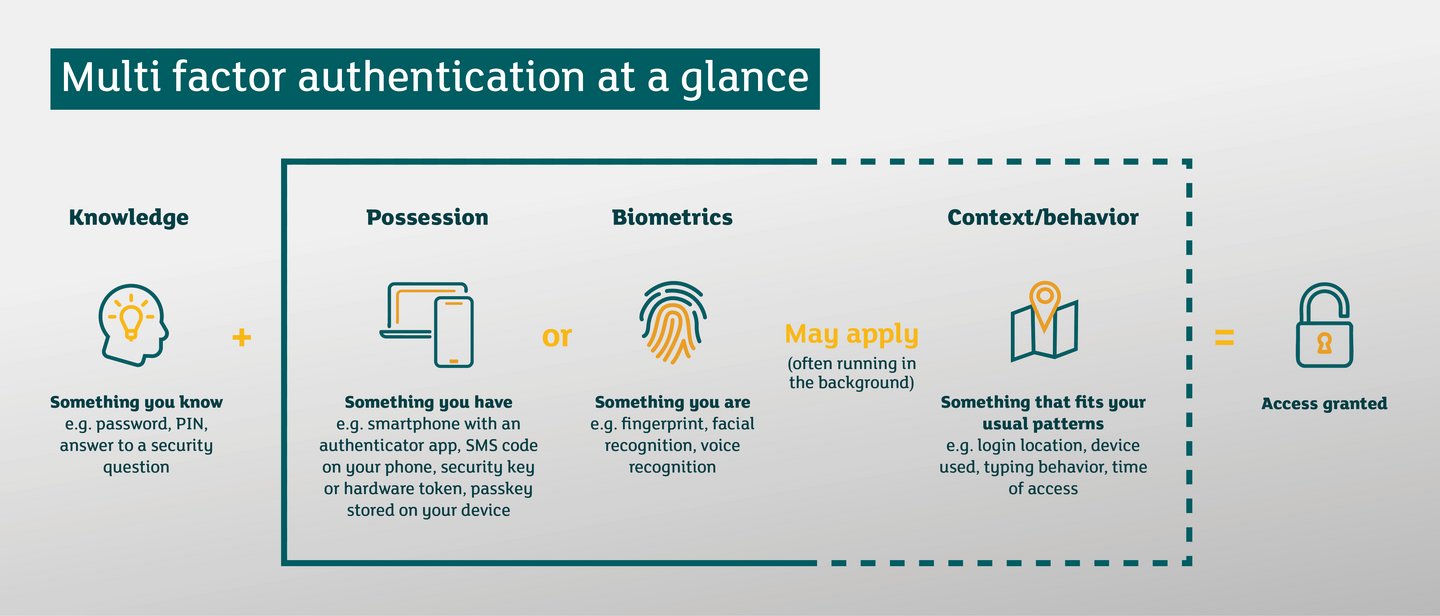
MFA methods compared: Authenticator apps, passkeys, SMS codes, biometrics, and security keys
Once you have entered your password or PIN, you will be asked to verify a second factor. There are several ways to do this:
- Authenticator app
The app generates codes that are valid for a short time. This is considered one of the safest and easiest options. - Push notification on your smartphone
You receive a push notification on your phone and approve the login with a tap. It is simple, fast, and widely used. - Passkeys
Passkeys replace passwords. You confirm the login on your device using Face ID, a fingerprint, or your device passcode. This is especially secure because there is no password that can be guessed or stolen through phishing. - Biometric confirmation
A fingerprint or facial recognition is used as an extra confirmation step, usually on your smartphone or laptop. - Security key or hardware token
A physical device is connected to your computer or tapped to your smartphone to verify your identity during login. - SMS or email code
You receive a one time code by text message or email. This method is less secure than an authenticator app, passkey, or security key. Still, it is much better than no extra protection.
How to set up multi factor authentication (MFA) step by step
Setting up MFA takes less effort than many people think. It usually takes only a few minutes.
- Start with your most important accounts
Begin with your email account. If someone gains access to it, they can reset passwords for other services. Next, focus on online banking, payment apps, social media, cloud storage, and customer portals. These accounts hold your money, identity, and personal data. - Open the security settings
Look for sections called Security, Login, Two Factor, MFA, or Authentication. - Choose a secure method
Authenticator apps or passkeys are usually the best options. SMS codes are better than nothing, but they are considered less secure than apps or passkeys. - Turn on MFA and follow the instructions
Most providers guide you through the process step by step. - Save backup codes
Many services provide recovery codes. Store them safely, for example in a password manager or print them and keep them in a safe place. This helps you regain access if you lose your phone or switch devices. - Test your login
Log out and sign in again. This helps you make sure everything works.
MFA: small effort, big impact
Multi factor authentication is one of the simplest and most effective ways to protect your accounts. It is quick to set up and usually free. It also greatly reduces the risk of common attacks.
If you want to seriously protect your accounts, enable MFA wherever it is available. A strong and unique password is still important, as it further lowers your risk.
Review your MFA settings regularly to keep your protection effective. Keep your contact information up to date. Make sure your authenticator app or passkeys are properly transferred when you change devices. And respond immediately to any unusual security alerts.
MFA also provides valuable additional protection for business accounts. |
More topics you may find interesting
Phishing, Smishing, and Vishing: How to spot these scams
It only takes a brief moment of inattention. Scam emails, text messages, and phone calls can look alarmingly real. Learn how to recognize common warning signs before it is too late.

How businesses protect passwords with MFA
Have you recognized the importance of multi factor authentication and want to better protect your company’s passwords from cyberattacks? We offer solutions tailored to your business needs.

Protect your business from DDoS attacks
When digital services go down, more than just technology is at stake. Read our blog to learn how to prevent costly downtime.