
FRITZ!Box 7632 Setup / Internet Connection
1 Connecting the FRITZ!Box
1.1 Connecting the DSL cable to the FRITZ!Box
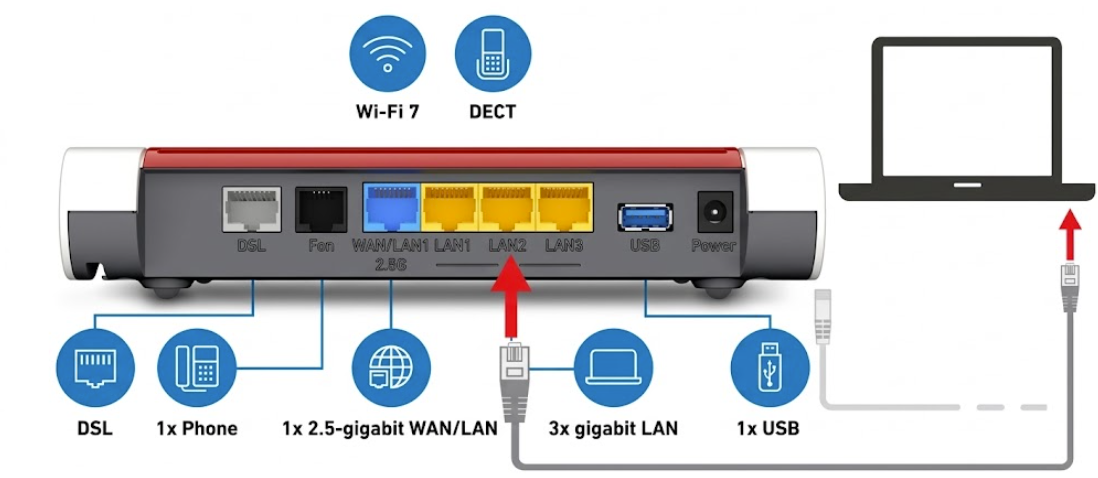
Connect the grey network cable to your FRITZ!Box.
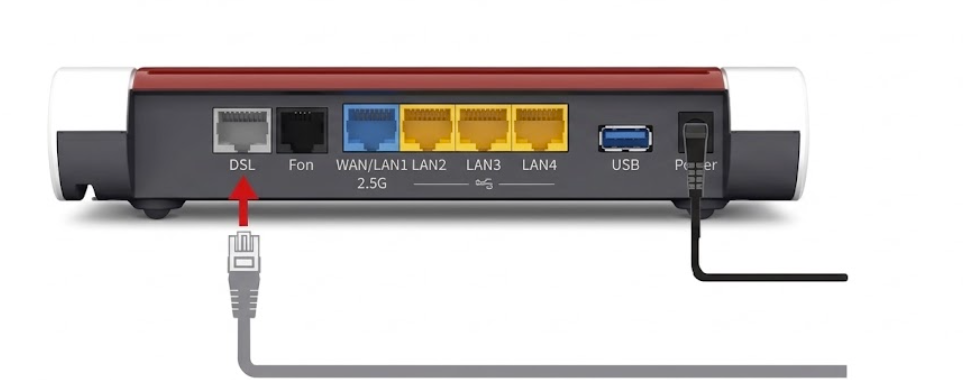
1.2 Connecting the FRITZ!Box to the telephone socket
Now connect the other end of the grey cable to the telephone socket. If the supplied Reichle adapter is required (see image), make sure you hear a click when connecting it.

1.3 Connecting the power Adapter
Connect the power adapter to your FRITZ!Box.
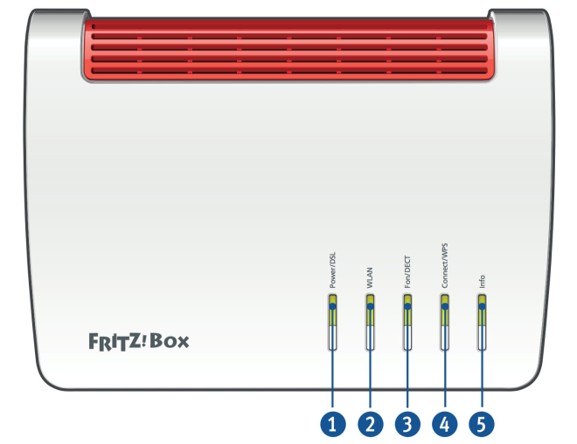
The «Power/DSL» LED starts flashing green as soon as the adapter is connected to the power supply. The FRITZ!Box is now configured automatically. The process takes approximately 5-10 minutes, after which the FRITZ!Box detects the Internet connection and, if available, the telephone settings. The FRITZ!Box will restart several times. Afterwards, the «Power/DSL» LED stops flashing and remains lit green.
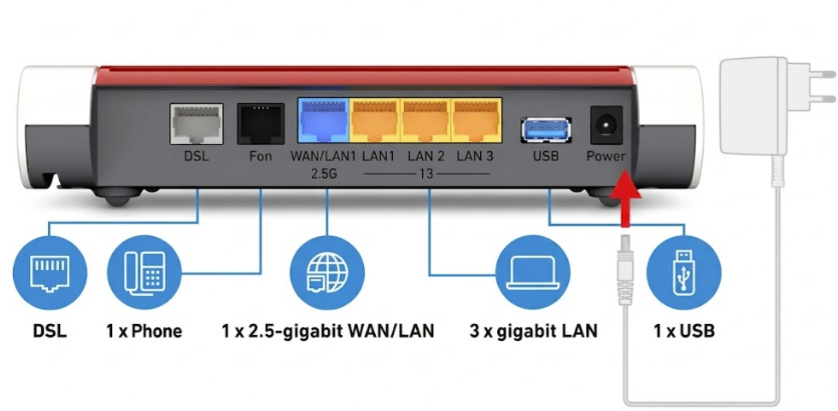
1.4 Description of the LEDs
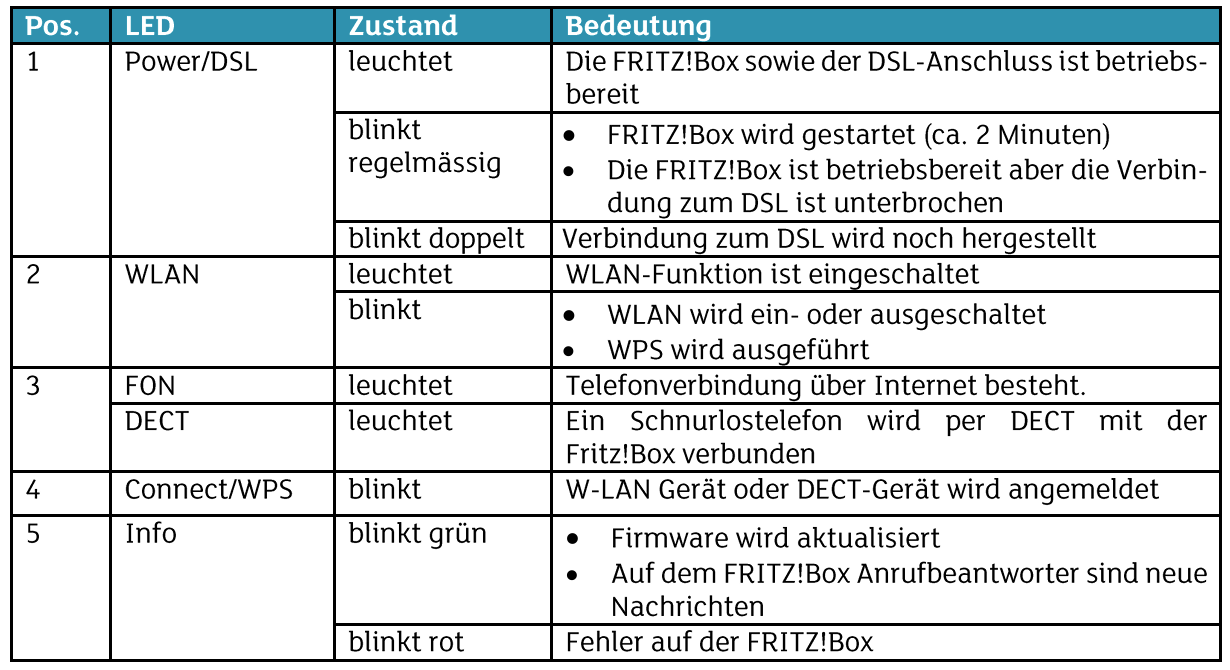
2 Network connection to your Computer
2.1 Connection with a network cable
If you want to connect your computer using a network cable, connect the yellow network cable to a free LAN port on the FRITZ!Box and to the LAN port on the computer.
2.2 Wireless network Connection
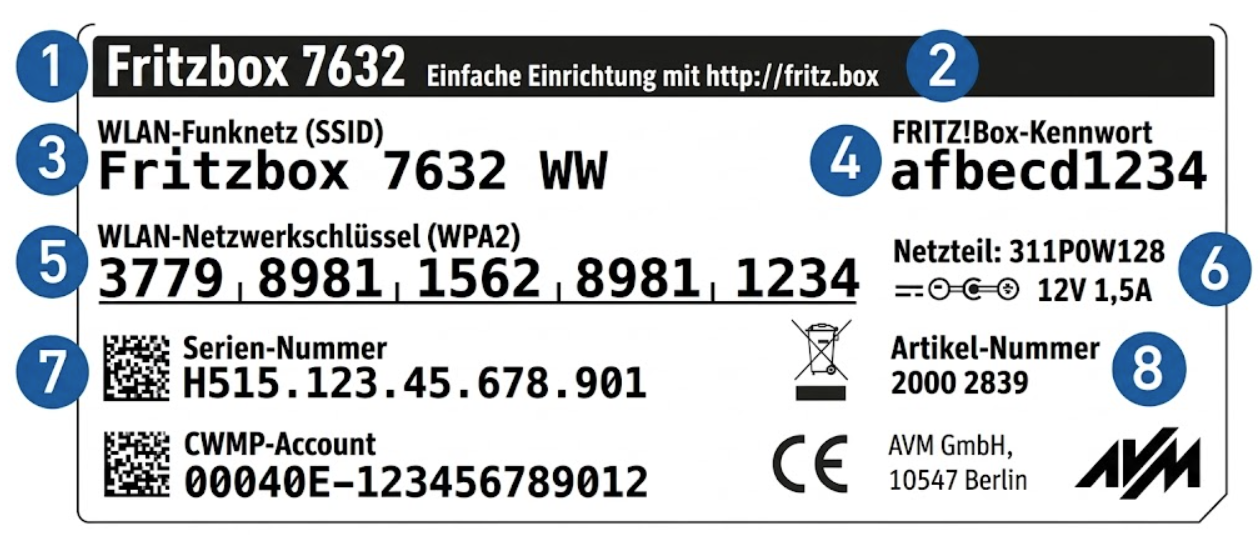
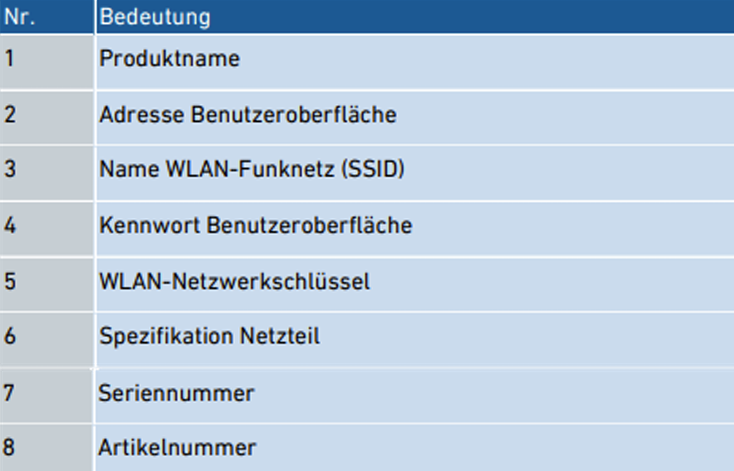
If you want to connect your computer via the wireless network connection (WLAN), you need the name of the wireless network connection and the password. The wireless connection has already been preconfigured for your FRITZ!Box. You can find the WLAN name (SSID) and the password for the wireless Internet connection on the back of your FRITZ!Box.
2.3 Activating the Internet signal for a new subscription
When an Internet subscription from green.ch is put into operation for the first time, additional steps may be required depending on the situation. Please refer to your personal data sheet to find out whether this applies to you. However, if the Internet connection is already working, no further action is required.
a) If a connection identification number (ACO number) is displayed when you open a website after connecting all devices, please provide it to us by telephone on 0844 842 842 or by email at anfrage@green.ch. The service can then be activated without requiring an electrician.
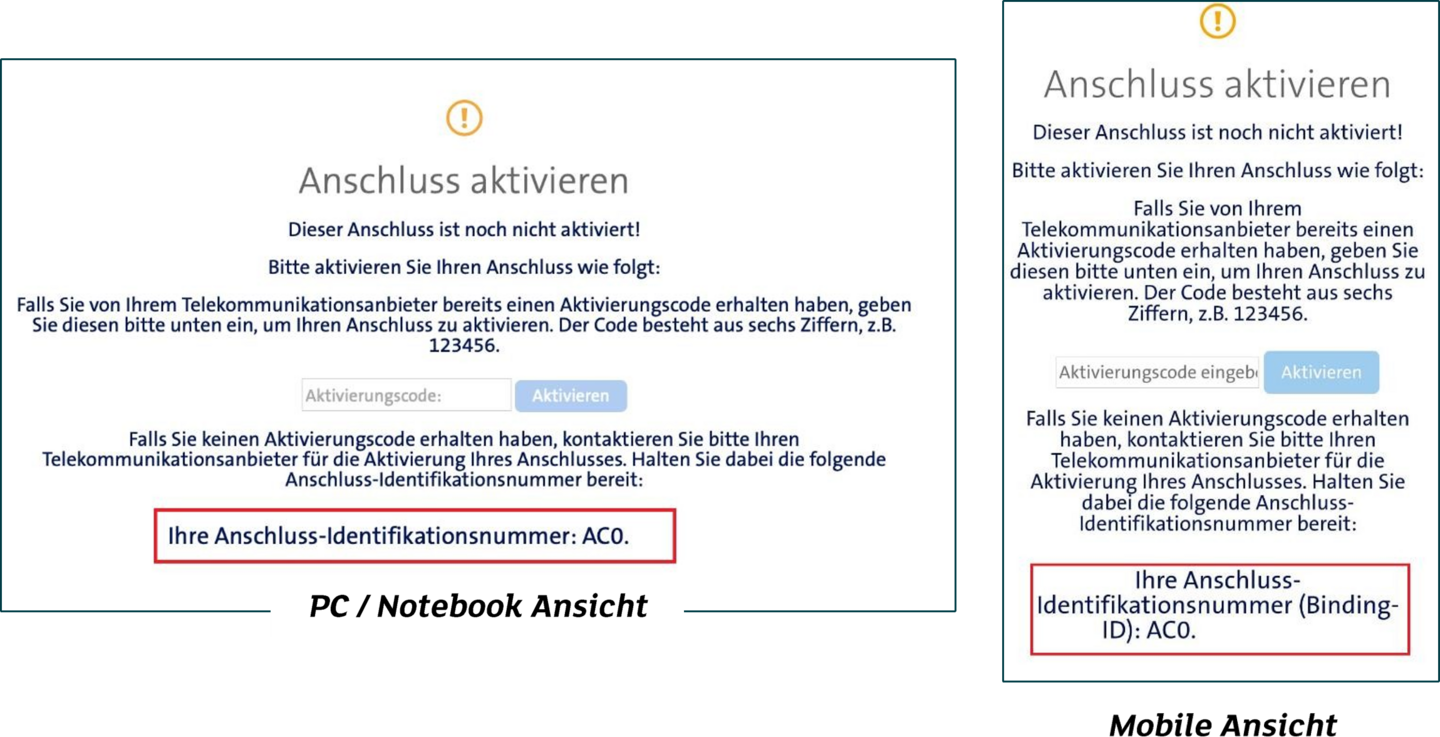
b) If you do not receive a connection identification number (image above), the internal house wiring must be correctly connected by your preferred electrician according to the data sheet. Responsibility for the internal house installation lies with the customer. The information required by your electrician can be found on your personal data sheet or in the customer portal at https://my.green.ch
2.4 Accessing the FRITZ!Box for advanced settings
First, you need to connect to the FRITZ!Box user interface. Make sure that your computer is connected to the FRITZ!Box via LAN cable or WLAN.
Then enter "fritz.box" or "192.168.178.1" in the address bar of your Internet browser (e.g. Firefox or Internet Explorer). The FRITZ!Box is already protected by a password in its factory settings. You can find this password on the label on the back of your FRITZ!Box. If you have not changed this password, you can use it to access the FRITZ!Box user interface.