
Change the Wi-Fi Password for the FRITZ!Box
The Wi-Fi password protects access to your wireless network. After changing it, all devices that were previously connected to the Wi-Fi must reconnect using the new password.
1. Enable Wi-Fi
If the FRITZ!Box Wi-Fi is switched off, it must first be enabled. Only then will all Wi-Fi security settings be fully available.
- Check the Wi-Fi LED on the FRITZ!Box.
- Briefly press the Wi-Fi button.
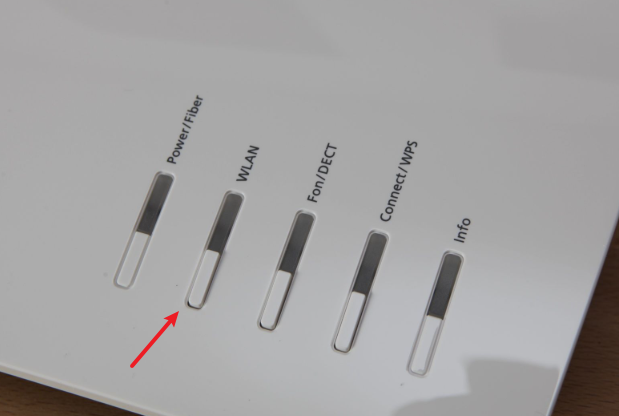
The Wi-Fi LED should blink briefly and then remain lit continuously.
2. Change Wi-Fi encryption and security
Encryption protects your Wi-Fi from unauthorised access.
- Open the address fritz.box in your browser.
- Open the Wi-Fi section in the FRITZ!Box user interface.
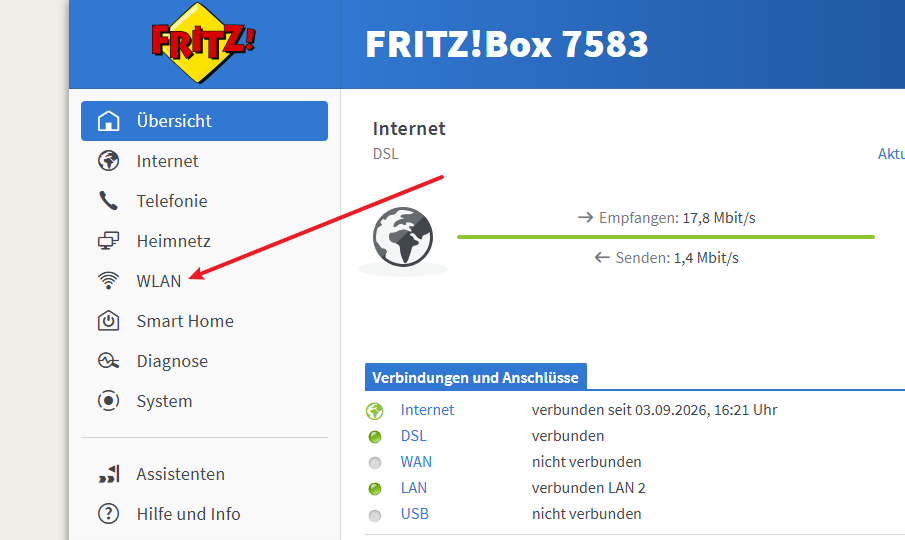
- Click Security.
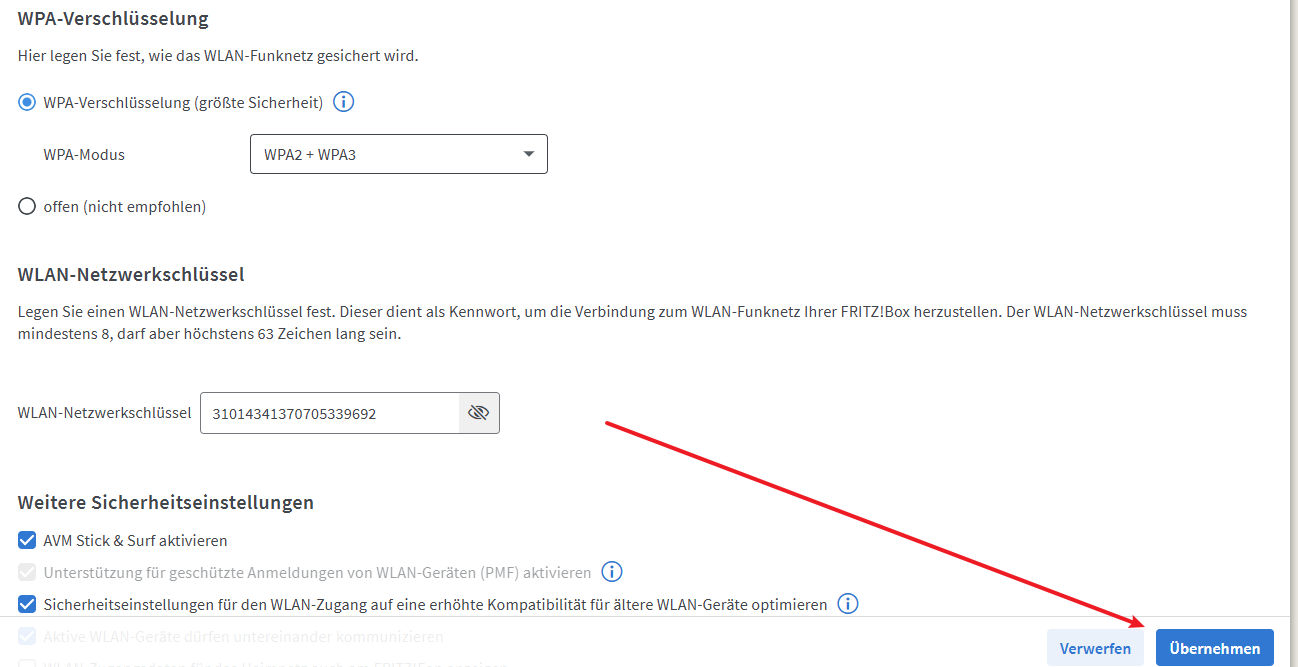
- Switch to the Encryption tab.
- Enable WPA Encryption.
- For WPA Mode, select WPA2 + WPA3 whenever possible.
This setting uses WPA3 for modern devices while still supporting devices that only support WPA2.
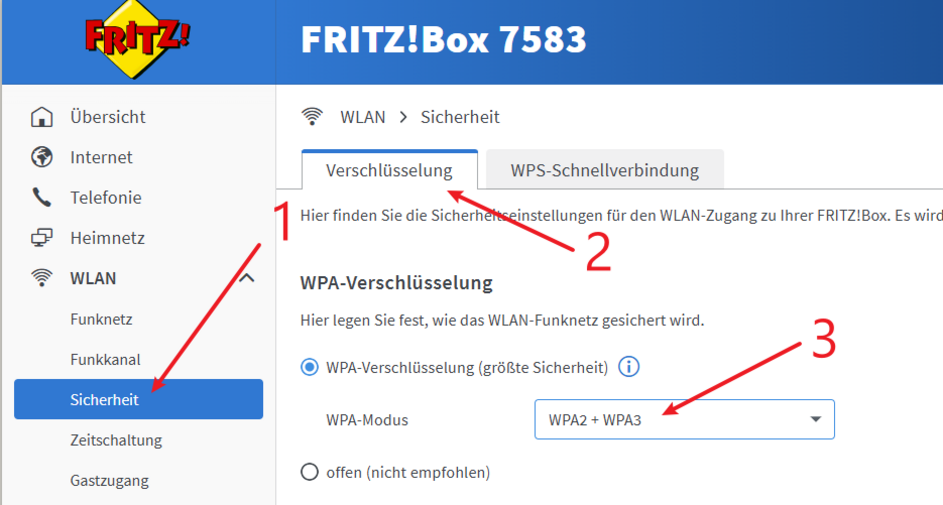
If older Wi-Fi devices do not support WPA3 and experience issues with WPA2 + WPA3, you can select WPA2 instead.
- Enter a new Wi-Fi password in the Wi-Fi Network Key field.
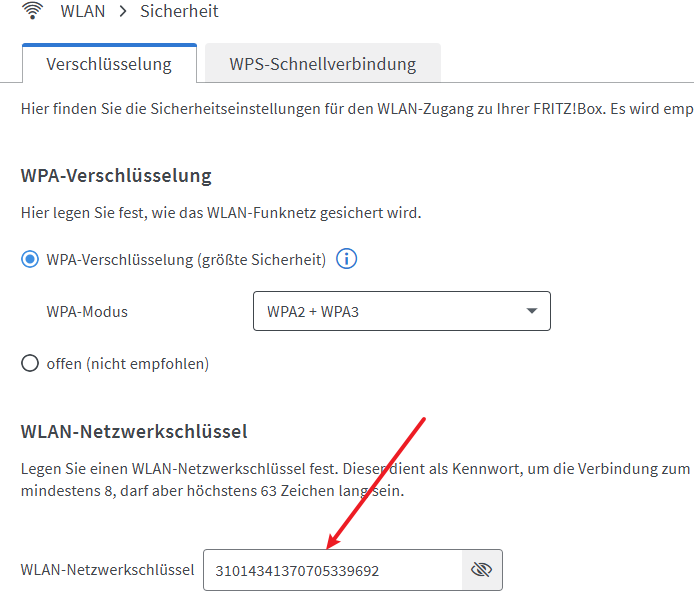
Choose a secure Wi-Fi password
Use a combination of the following for the Wi-Fi network key:
- Uppercase and lowercase letters
- Numbers
- Special characters
A longer and difficult-to-guess password is more suitable than a simple or personal word.
The option to operate the Wi-Fi without encryption should not be used, as the wireless network would be unprotected.
- Click Apply to save the changes.
3. Use the new Wi-Fi credentials
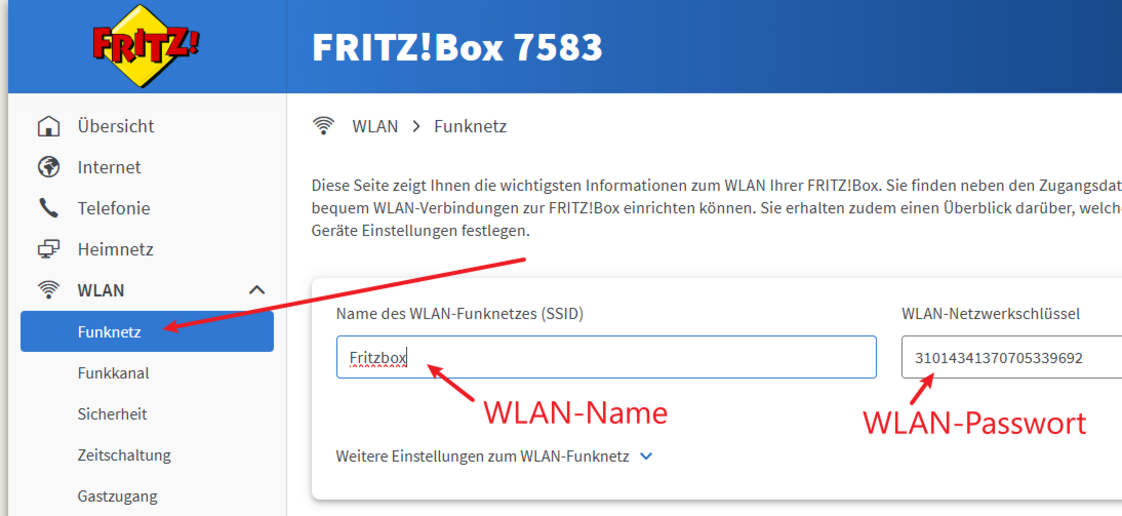
After saving, the FRITZ!Box displays the new Wi-Fi credentials.
Make a note of or store these credentials in a secure location.
You must then reconnect all devices that use the Wi-Fi. These include, for example:
- Smartphones and tablets
- Computers and laptops
- Smart TVs
- Printers
- Smart home devices
- Game consoles
- Wi-Fi repeaters
If the FRITZ!Box has been configured as a Mesh Master, the changed Wi-Fi security settings are automatically transferred to the connected FRITZ!Repeaters in the mesh.
Note regarding WPA3
Not all older Wi-Fi devices support WPA3. In particular, older devices may not be able to connect to the Wi-Fi if WPA3 is used exclusively.
In such cases, WPA2 + WPA3 or, for very old devices, WPA2 is the more suitable setting.
Change the Wi-Fi name
Your Wi-Fi is displayed to other devices under this name.
- Open the Wi-Fi section in the FRITZ!Box user interface.
- Switch to the Wireless Network tab.
- Adjust the Wi-Fi name as required
Additional information
Further information about Wi-Fi settings can be found in the following article:
https://www.green.ch/en/wlan-settings
Further information about secure passwords can be found in the following article: