
The following instructions were created with Thunderbird 60.5.0. However, the following instructions can also be used for other Thunderbird versions.
The order of the steps can be different.
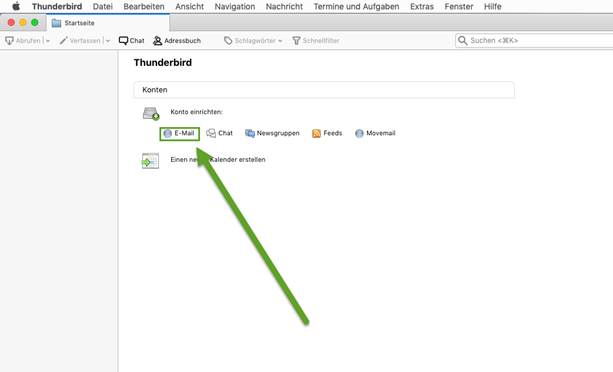
1. Open the Thunderbird program on your iMac/Macbook and click on «Email».
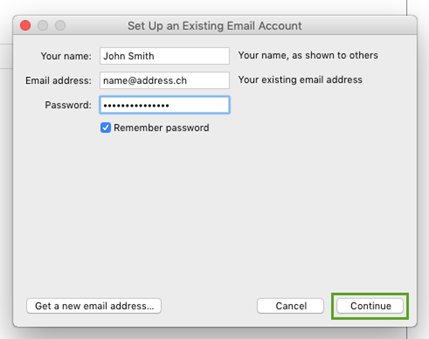
2. Enter your name, email address and password and click «Continue».
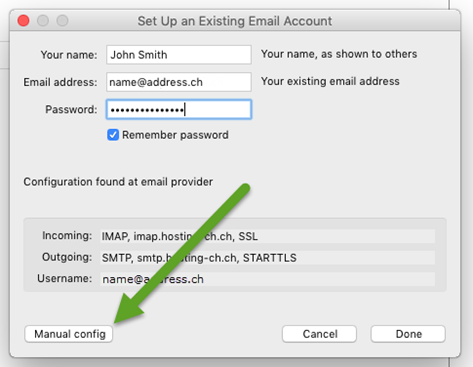
3. The settings should be found automatically. If not, click on «Manual config».
4. Check that the Incoming server type is set to «POP» and that the following servers are used:
- pop.hosting-ch.ch, Port 995, SSL/TLS
- smtp.hosting-ch.ch, Port 587, STARTTLS
- Also note that both fields represent your email address.
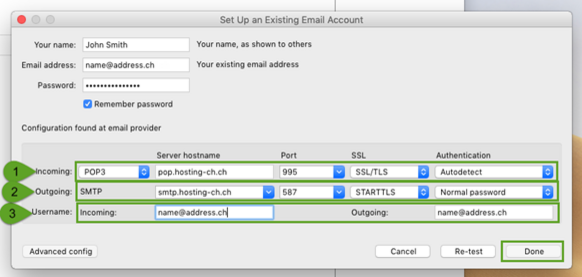
5. After clicking on «Done» you can use your email address.