
Installation of Huawei ONT with TP-Link Router
This guide explains step by step how to install the Huawei ONT and connect it to your Wi-Fi router. Follow the instructions below to complete the installation correctly ONT package contents
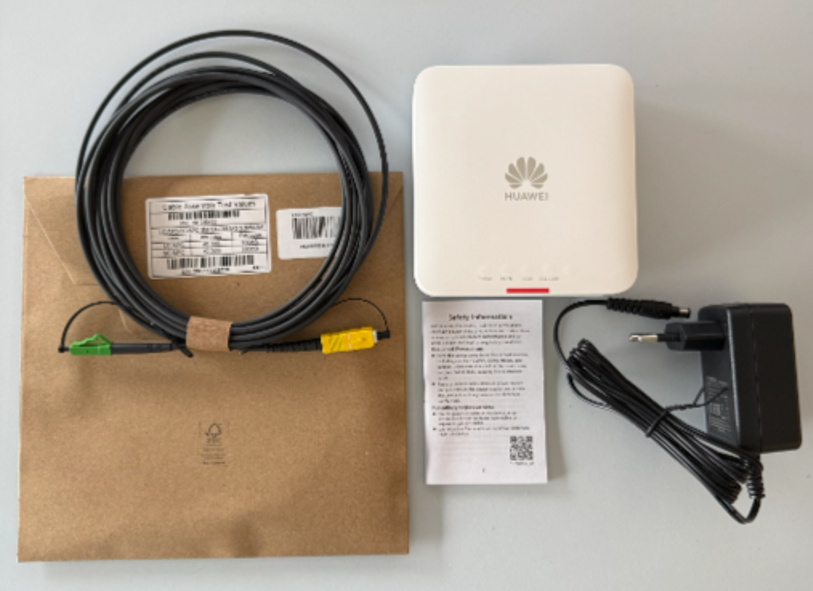
- 1x fibre-optic cable with green and yellow cable ends
- 1x Huawei ONT
- 1x power adapter
- 1x Quick Start Guide
1. Install the ONT
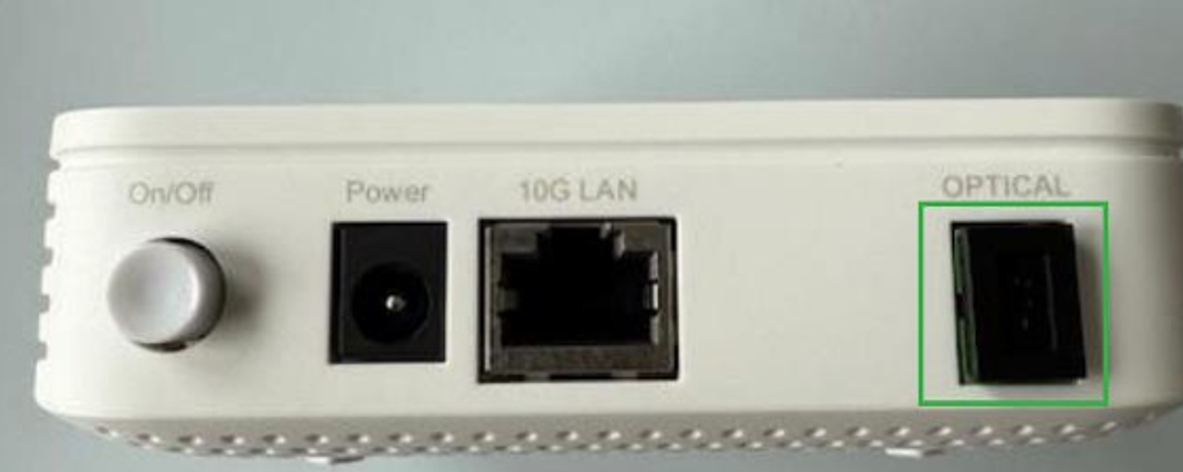
1.1 Connect the power supply Connect the power adapter to a power socket and to the «Power» port on the ONT.
1.2 Connect the fibre-optic cable
- Carefully remove the protective caps from both ends of the fibre-optic cable.
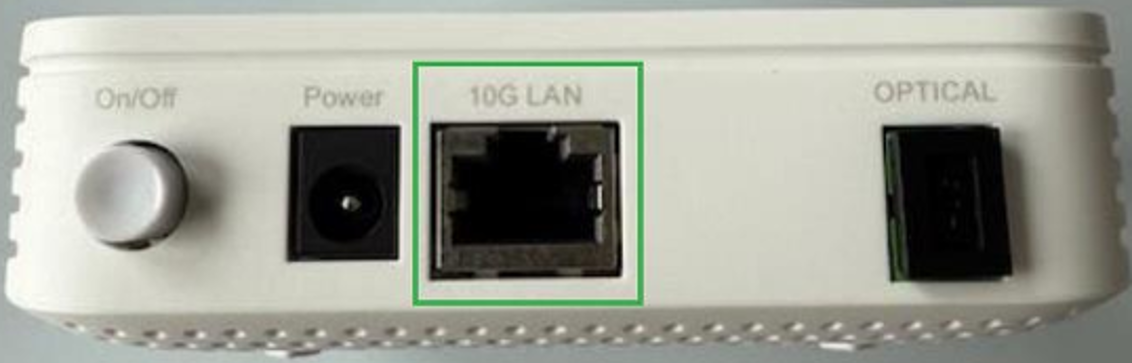
- Connect the wide, rectangular yellow cable end (with the white protective cap) to the «OPTICAL» port on the ONT.
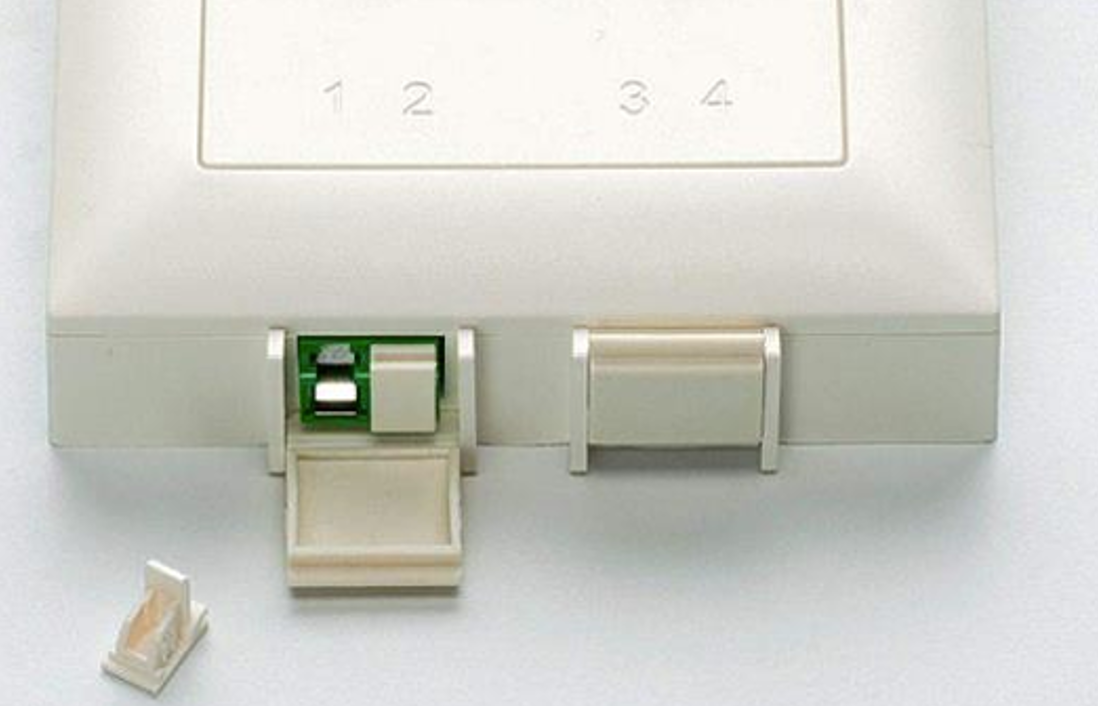
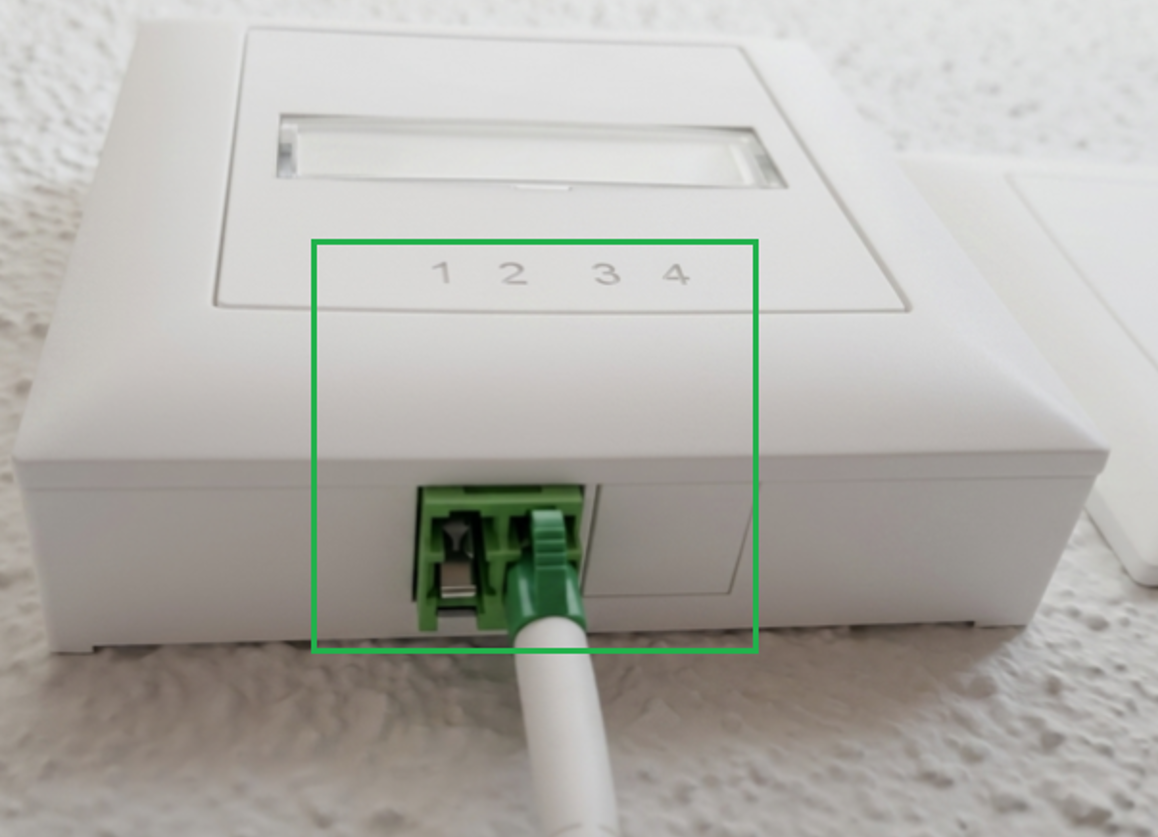
3. Connect the narrow green cable end (with the green protective cap) to the port on the fibre-optic socket specified on the data sheet: Plug No. 1, Plug No. 2, Plug No. 3 or Plug No. 4.
Important: Use the correct port. The fibre-optic cable is often accidentally connected to the wrong port. The data sheet specifies which plug carries the internet signal.
- Covered ports for Plug 3 and Plug 4: If the ports are covered as shown in the illustration, you can carefully remove the covers.
- Covered port for Plug 2: This is a protective cap that you can carefully remove.
- Wrong port: The ports are often located very close together. Make sure you use the correct one as specified on the data sheet
2. Install the router
Your FRITZ!Box router is connected to the Huawei ONT using a network cable. Use the network cable supplied with the router.
Important: Connect the network cable to the «10G LAN» port on the Huawei ONT. The port on the router depends on the respective model.
TP-Link
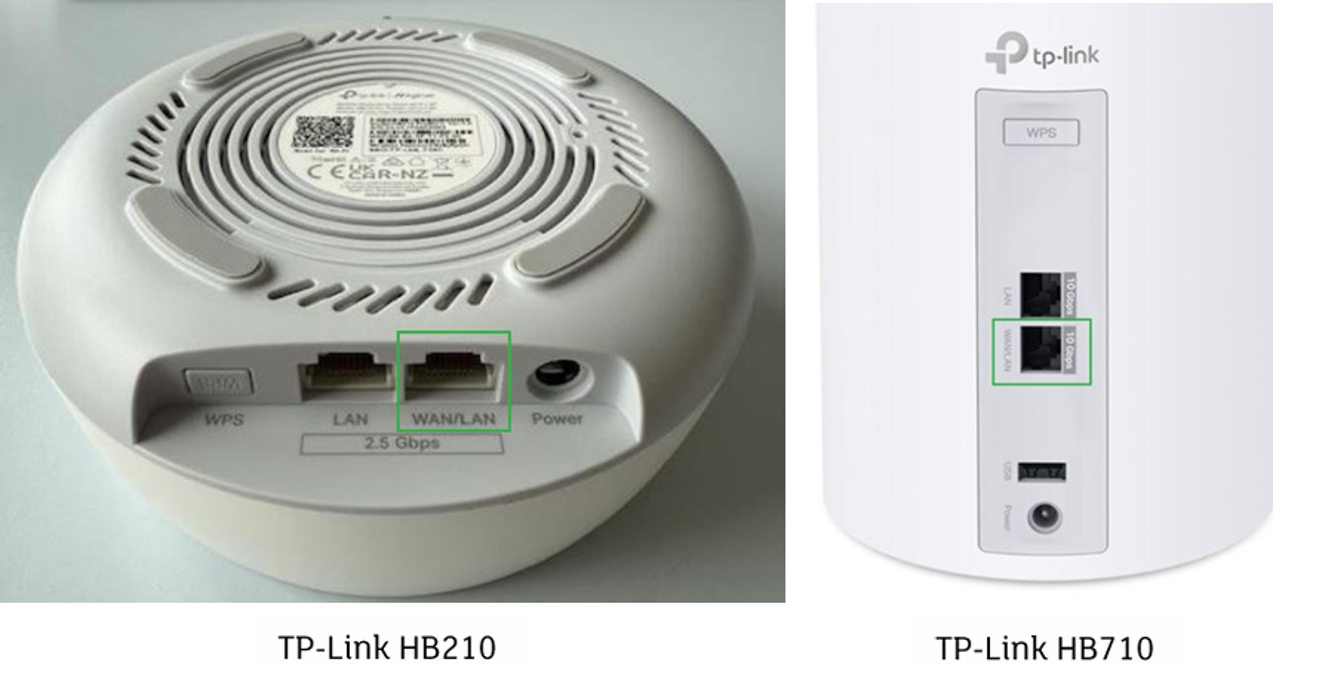
2.1 Connecting the TP-Link HB210 / HB710 to the Huawei ONT
This section applies if you received a TP-Link router along with the Huawei ONT.
1. Connect the Power Supply
Plug the power adapter into an electrical outlet and connect it to the “Power” port on the router.
2. Connect the Network Cable
Use the network cable to connect the “10G LAN” port on the Huawei ONT to the “WAN/LAN” port on the TP-Link router.
Unable to establish an internet connection?
Most connection problems can be resolved quickly by performing the following checks:
· Check whether all protective caps have been removed from the fibre-optic cable.
· Check whether the fibre-optic cable is fully inserted into the Huawei ONT. When inserted correctly, you will usually hear a distinct «click».
· Make sure that the fibre-optic cable is connected to the correct plug on the OTO socket. Use the port specified on your data sheet.
· On the FRITZ!Box, check whether the network cable from the Huawei ONT is plugged into the port labelled «WAN» directly on the device.
· Check whether all cables are firmly and correctly connected at both ends.