
Sign in to the my.green.ch customer portal with your MY user and password.
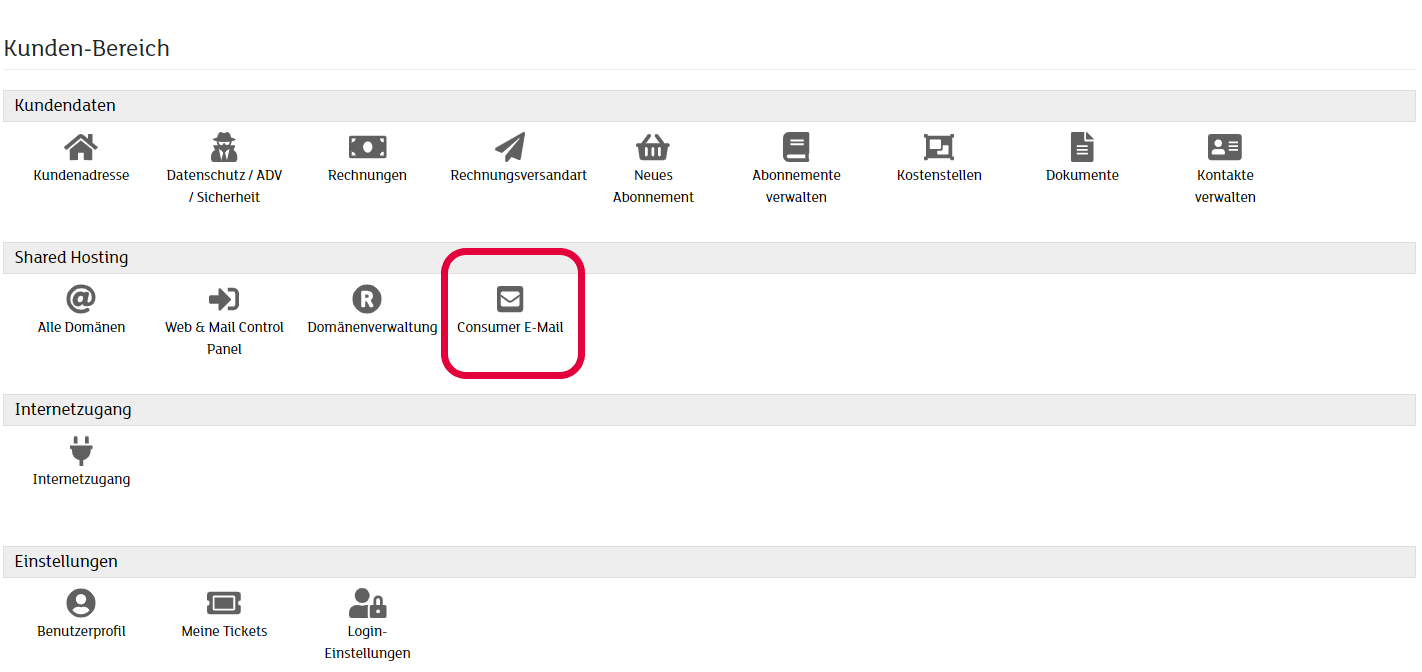
Once you've successfully signed into your customer portal, click on Consumer Email under the section Shared Hosting.
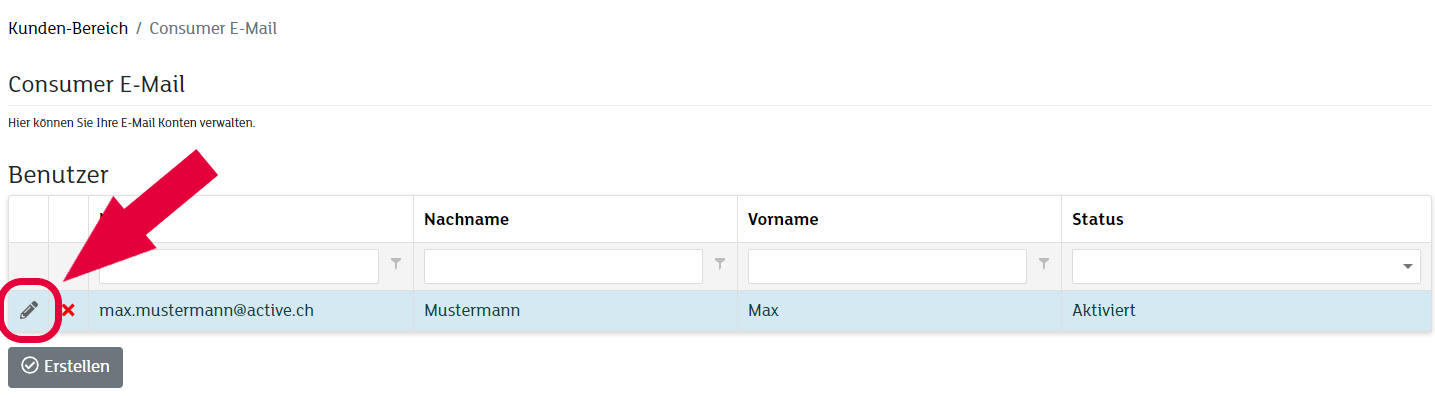
You will now find your email addresses listed in the overview. Click on the pencil icon on the left-hand side to edit the email address.
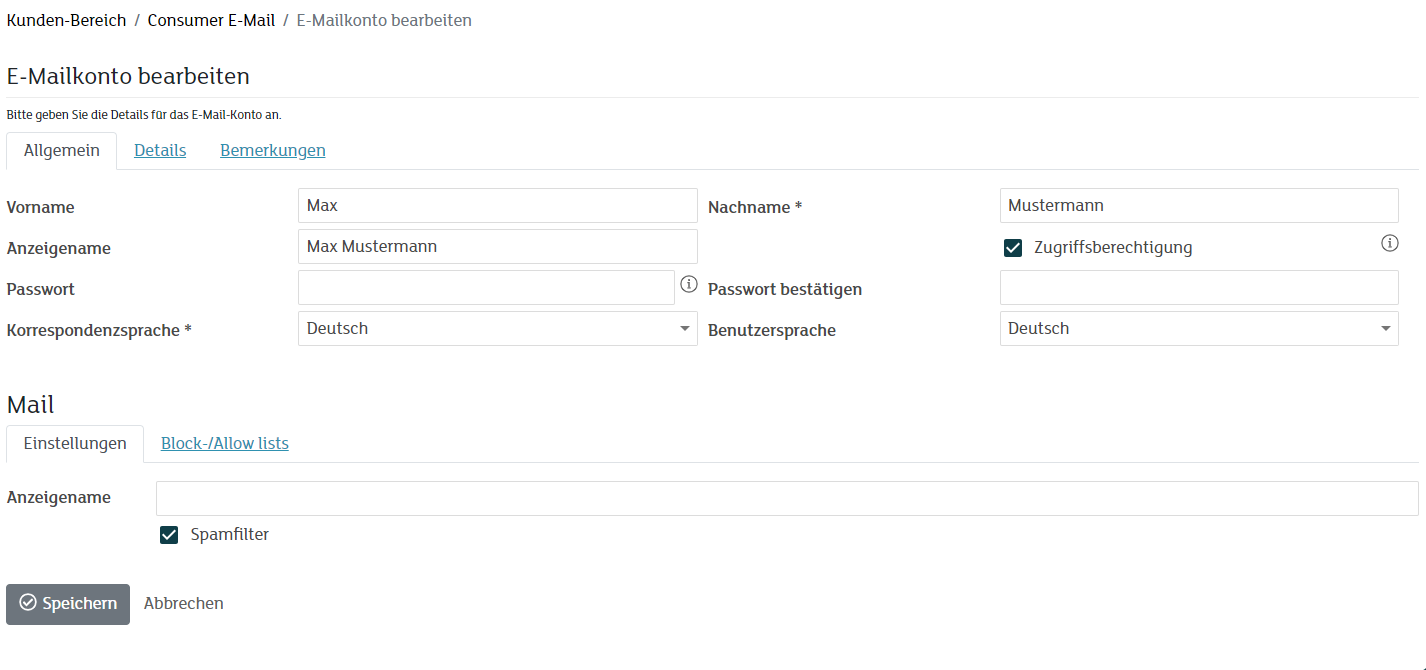
Now enter your new password in the input field titled Password. Confirm it by entering it again in the Confirm Password field.
Note: In order to set a new password, you no longer need to enter the old password. When assigning passwords, make sure that they fulfil the guidelines.
As soon as you have clicked on Save, the new password is valid. We recommend that you check the new password in the Webmail.
Reset Email Password inside of Customer Portal (Email User)
Sign in to the my.green.ch customer portal with your MY user and password.
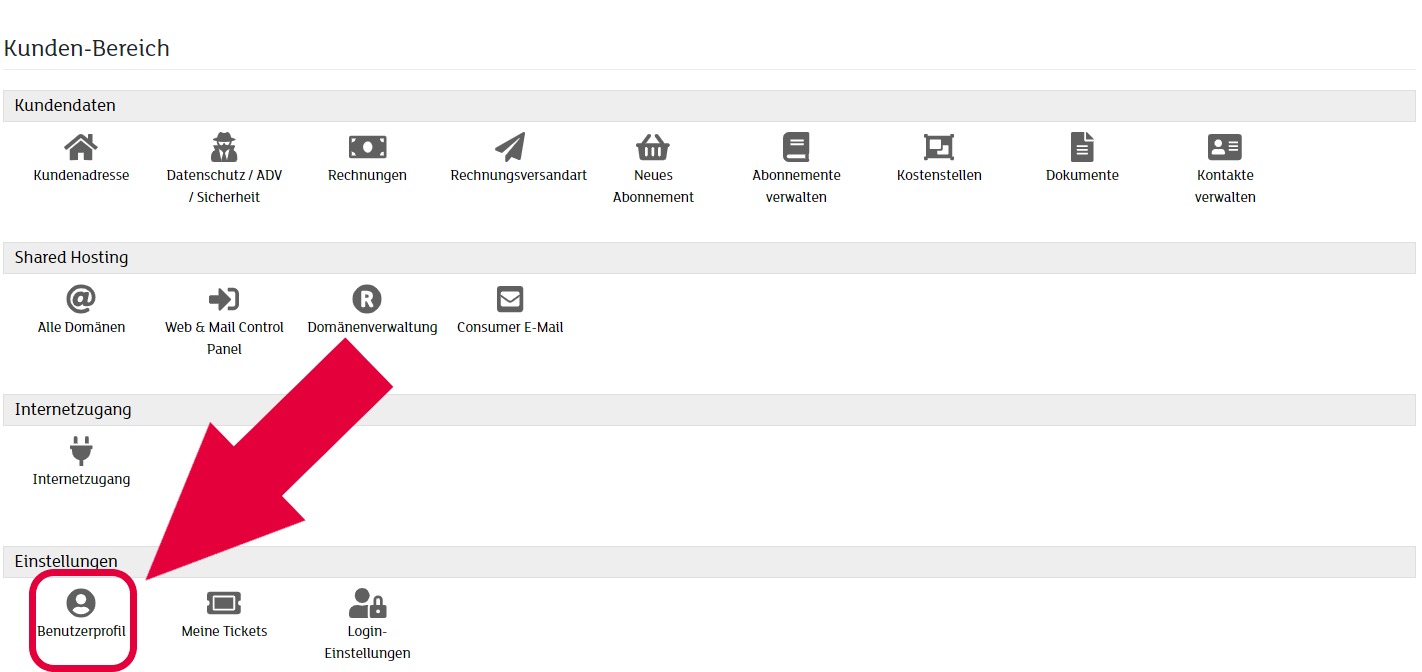
Once you've successfully signed into your customer portal, click on User Profile under the section Settings.
Enter your new password in the input field titled Password. Confirm it by entering it again in the Confirm Password field.
Note: In order to set a new password, you no longer need to enter the old password. When assigning passwords, make sure that they fulfil the guidelines
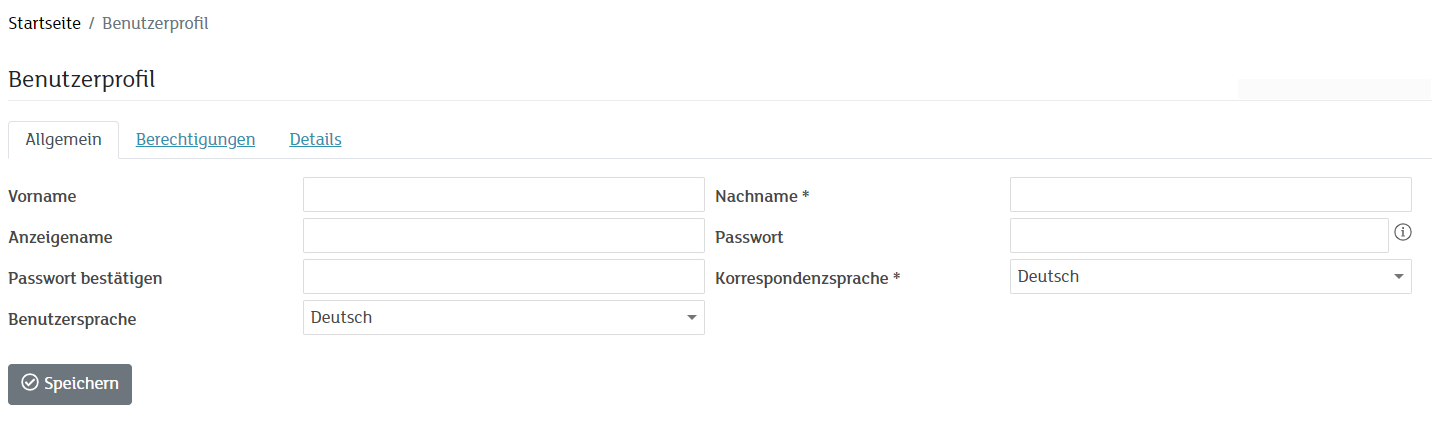
As soon as you have clicked on Save, the new password is valid. We recommend that you check the new password in the Webmail.