
How to Proceed
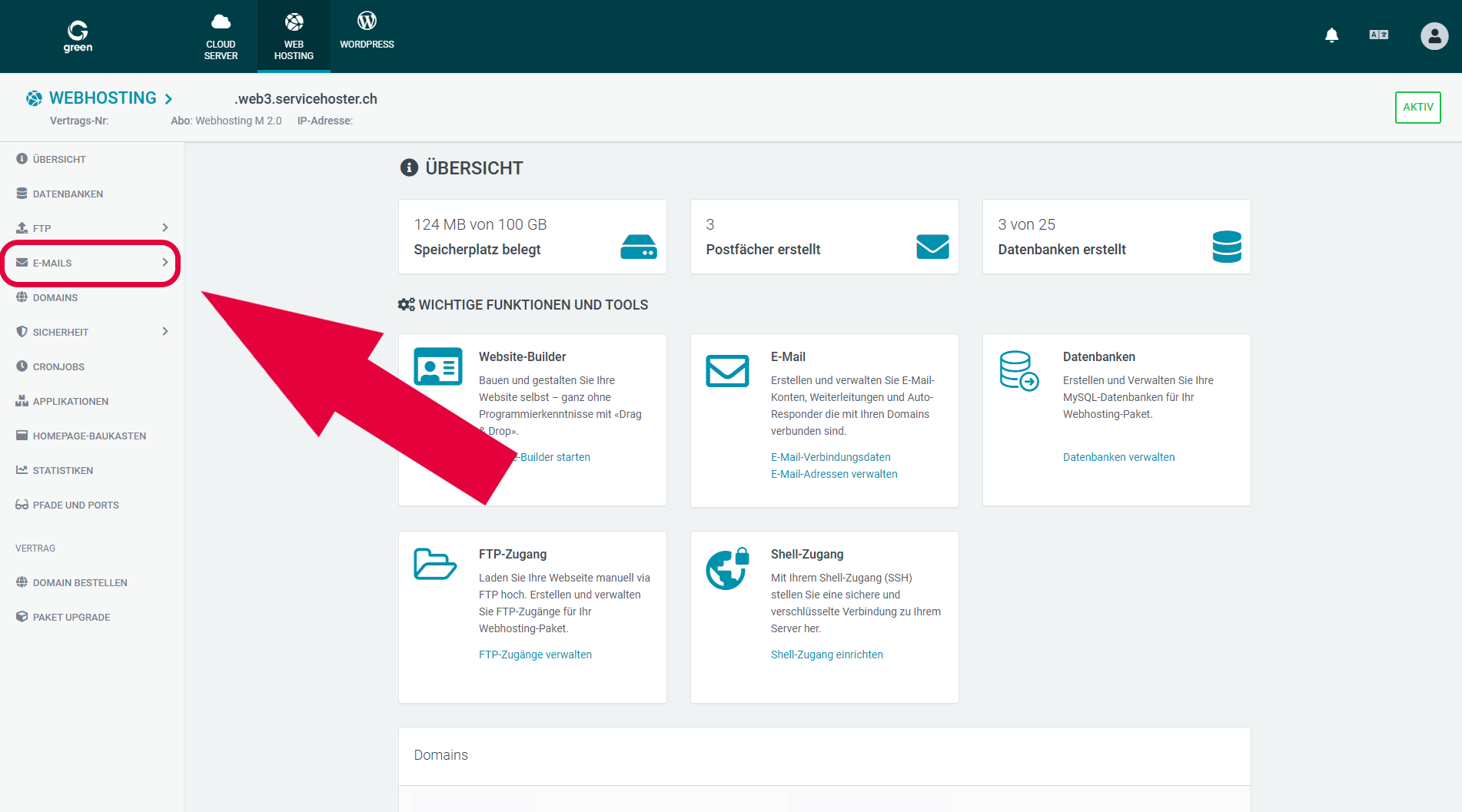
To your left, inside the navigation pane, click on the option emails, then email addresses.
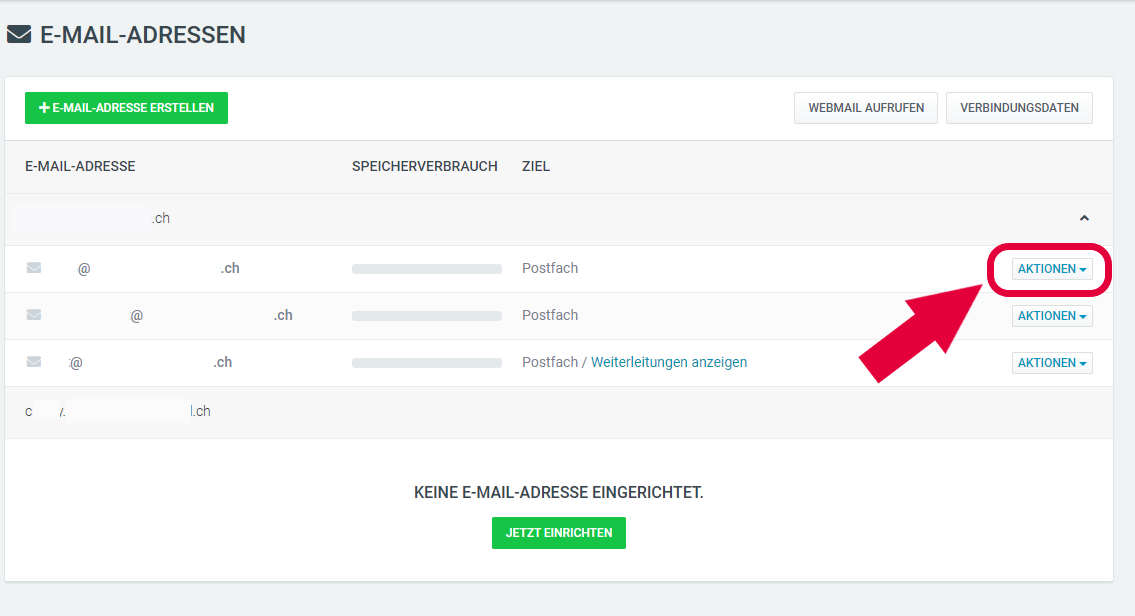
Select the button actions and then the option edit email address from the dropdown .
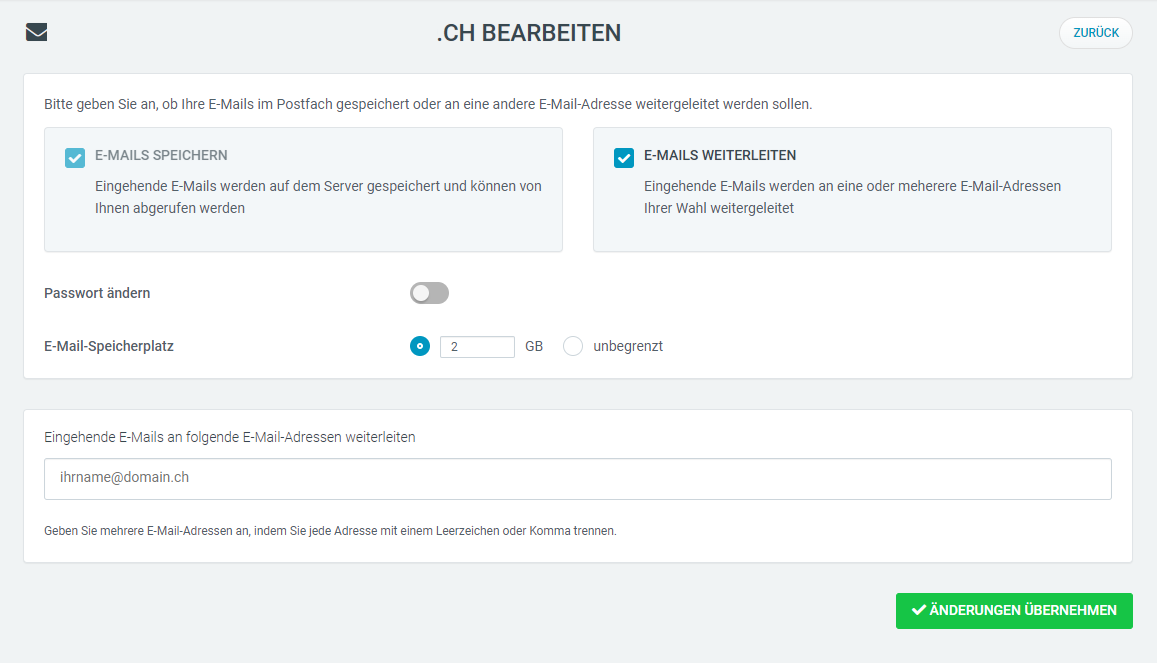
Tick the option forwarding emails with a blue marker in order to activate mail forwarding.
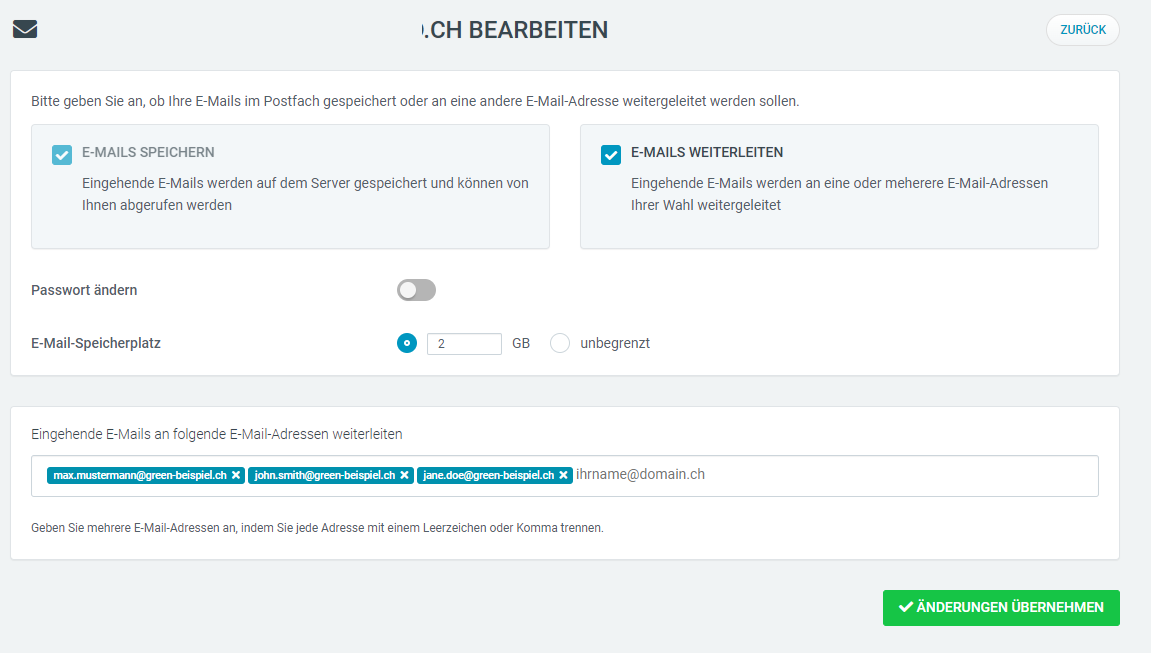
Now enter your desired email recipients.
As an example you may enter the following email addresses for your own user titled "work-colleagues@green-example.ch":
- max.mustermann@green-example.ch
- john.smith@green-example.ch
- jane.doe@green-example.ch
Note: You may need to create your email address prior to setting up your forwarding list if you would like to use it for a specific use-case (see example "work-colleagues@green-example.ch").
![[Translate to Englisch:] Änderungen Übernehmen Button](/fileadmin/user_upload/control-panel-gui-de-mail-pw-change-checked-save-changes-btn-small.png)
In order to save your changes, click on the green button Apply Changes.