
Create a subdomain
What is a subdomain?
A subdomain is an additional section within an existing main domain. Examples include www.mydomain.ch, shop.mydomain.ch or blog.mydomain.ch.
A subdomain can point to its own content, applications, directories or website sections.
Requirements
- The domain must be assigned to active hosting.
- You need access to the Web & Mail Control Panel.
Further information on assigning a domain to web hosting:
https://www.green.ch/en/reassign-a-domain-with-a-hosting-plan
Further information on accessing the Web & Mail Control Panel:
https://www.green.ch/en/accessing-the-control-panel
Create a subdomain
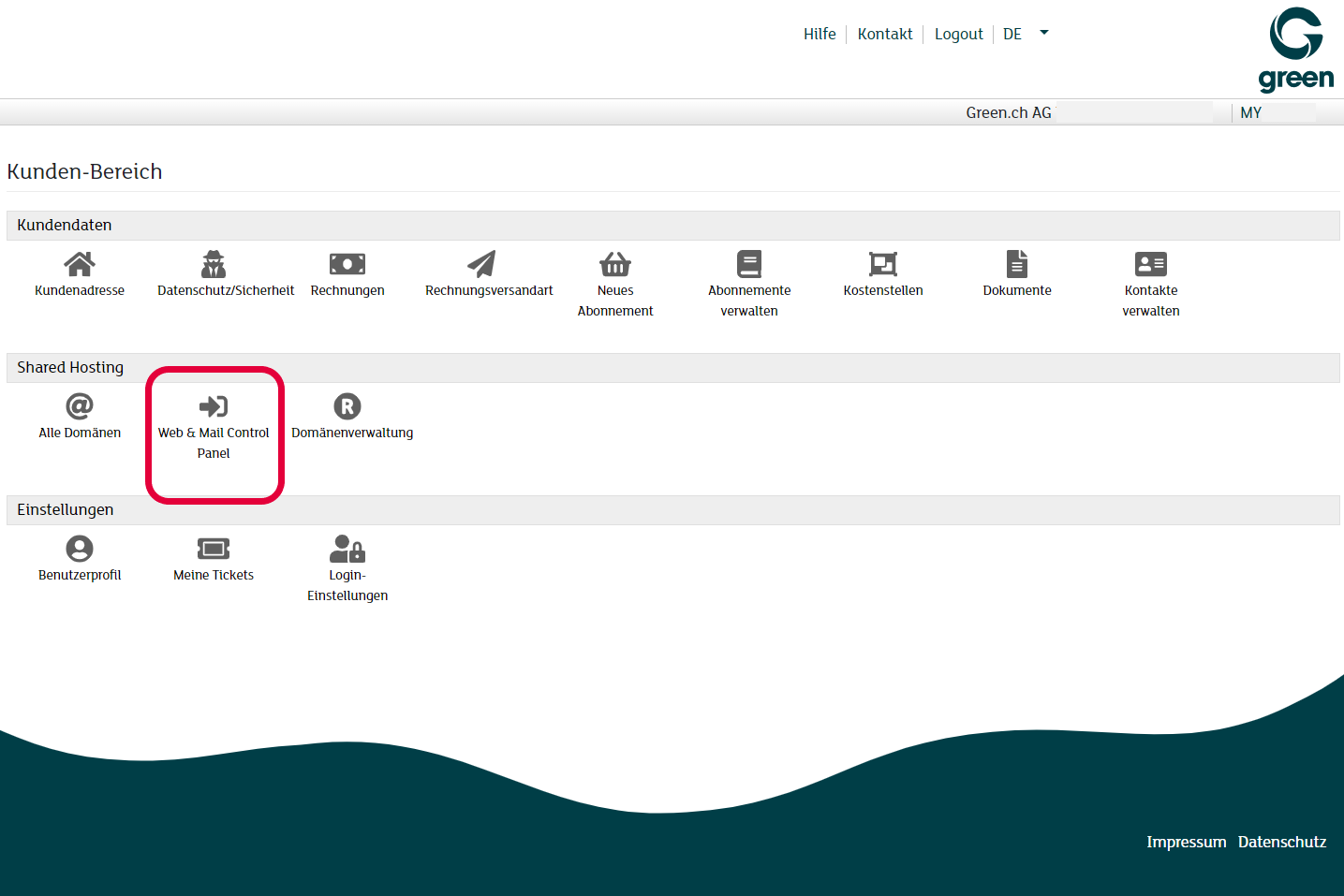
- Log in to my.green.ch with your MY username and password.
- Open «All Domains».
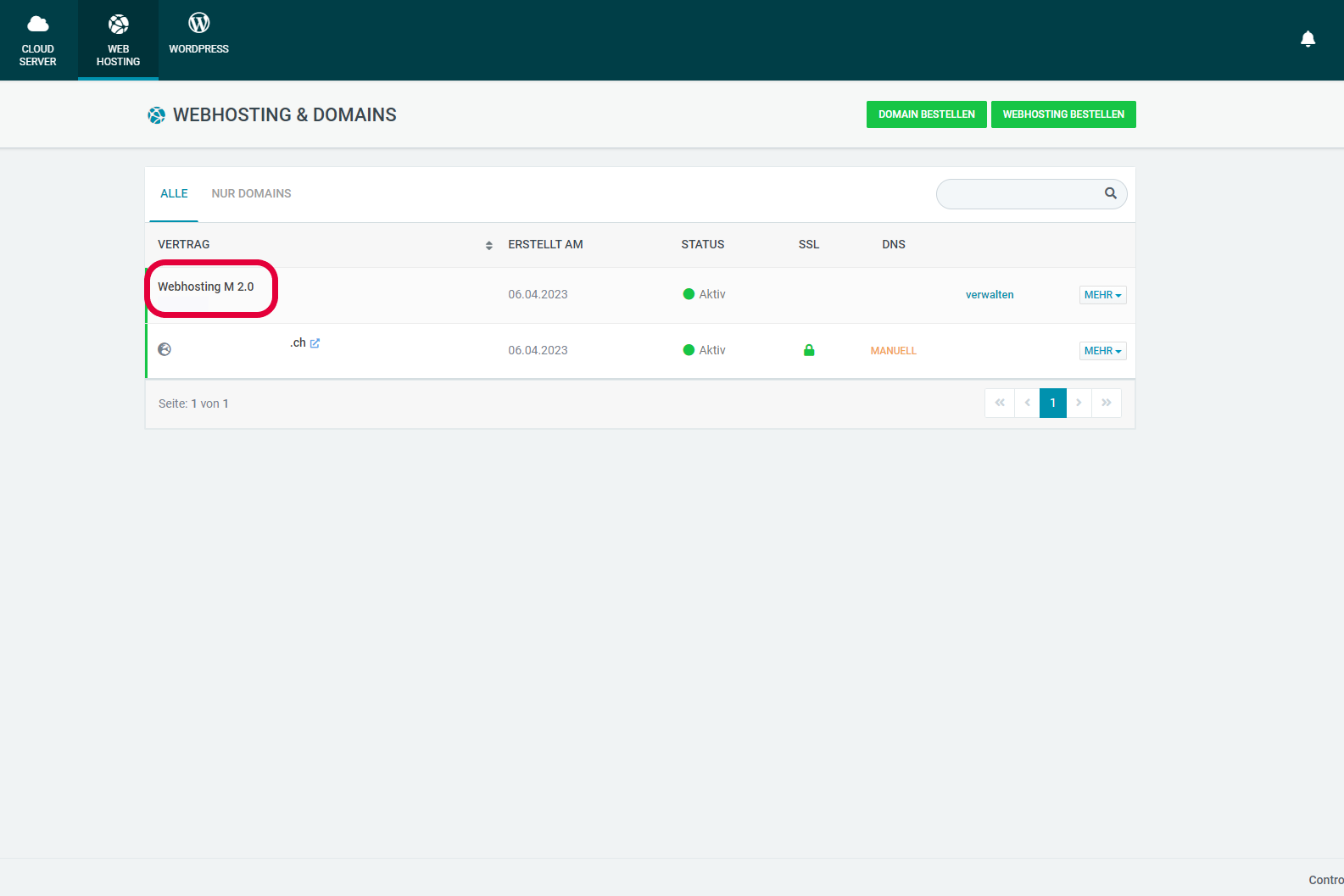
- For the desired domain, click the arrow icon to the right of the web hosting or mail hosting name.
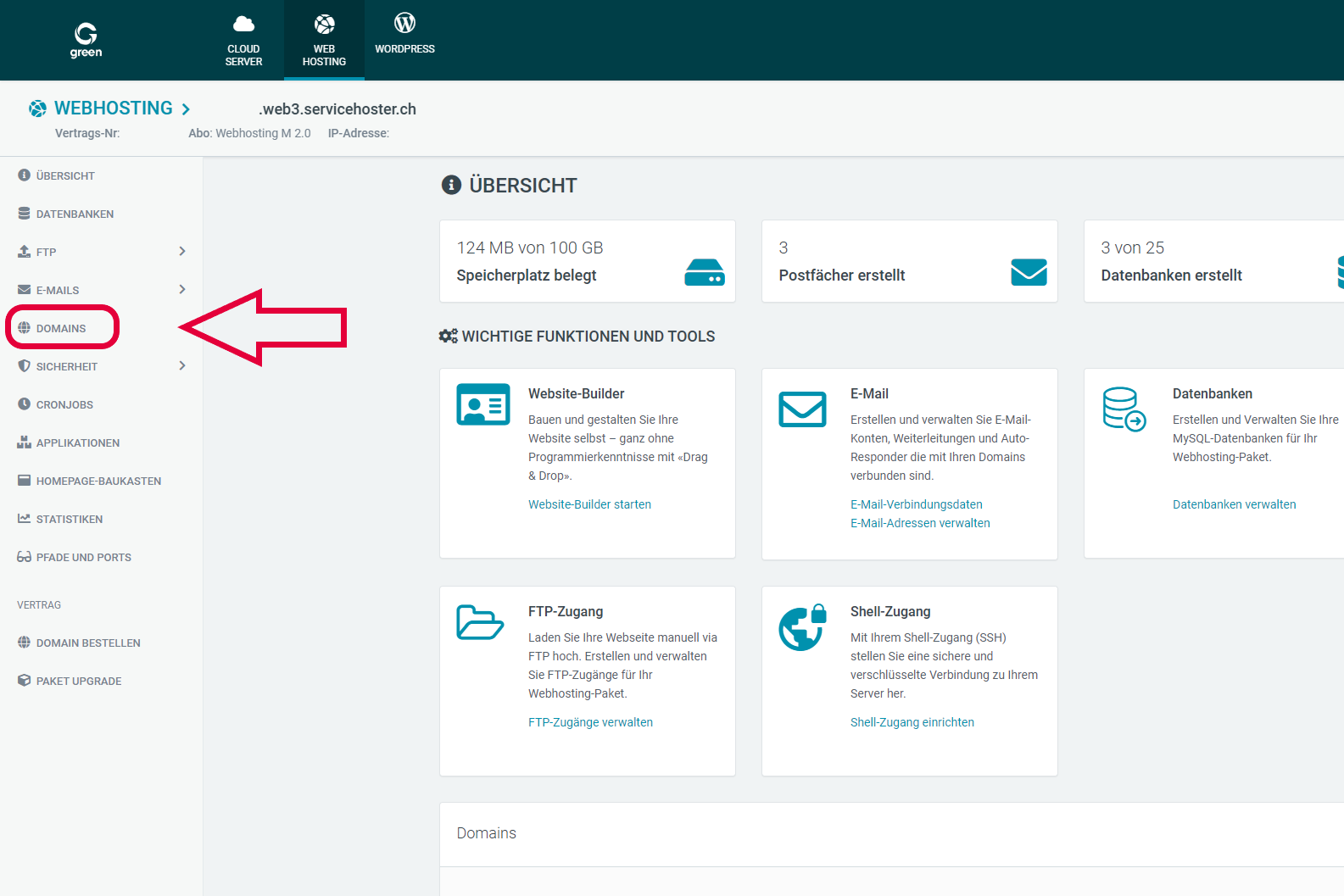
- In the Web & Mail Control Panel, open the «Domains» section.
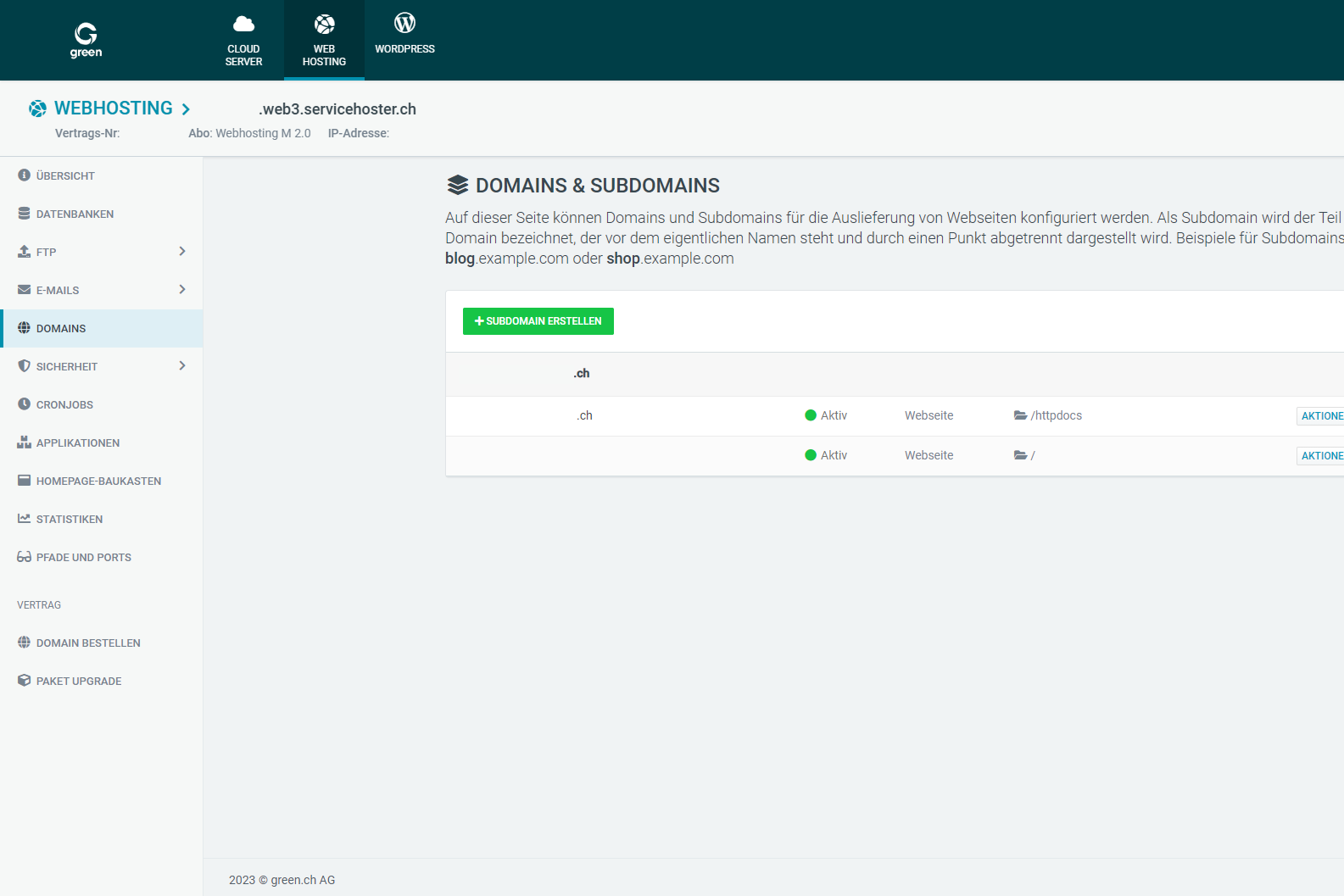
- Open «Subdomains».
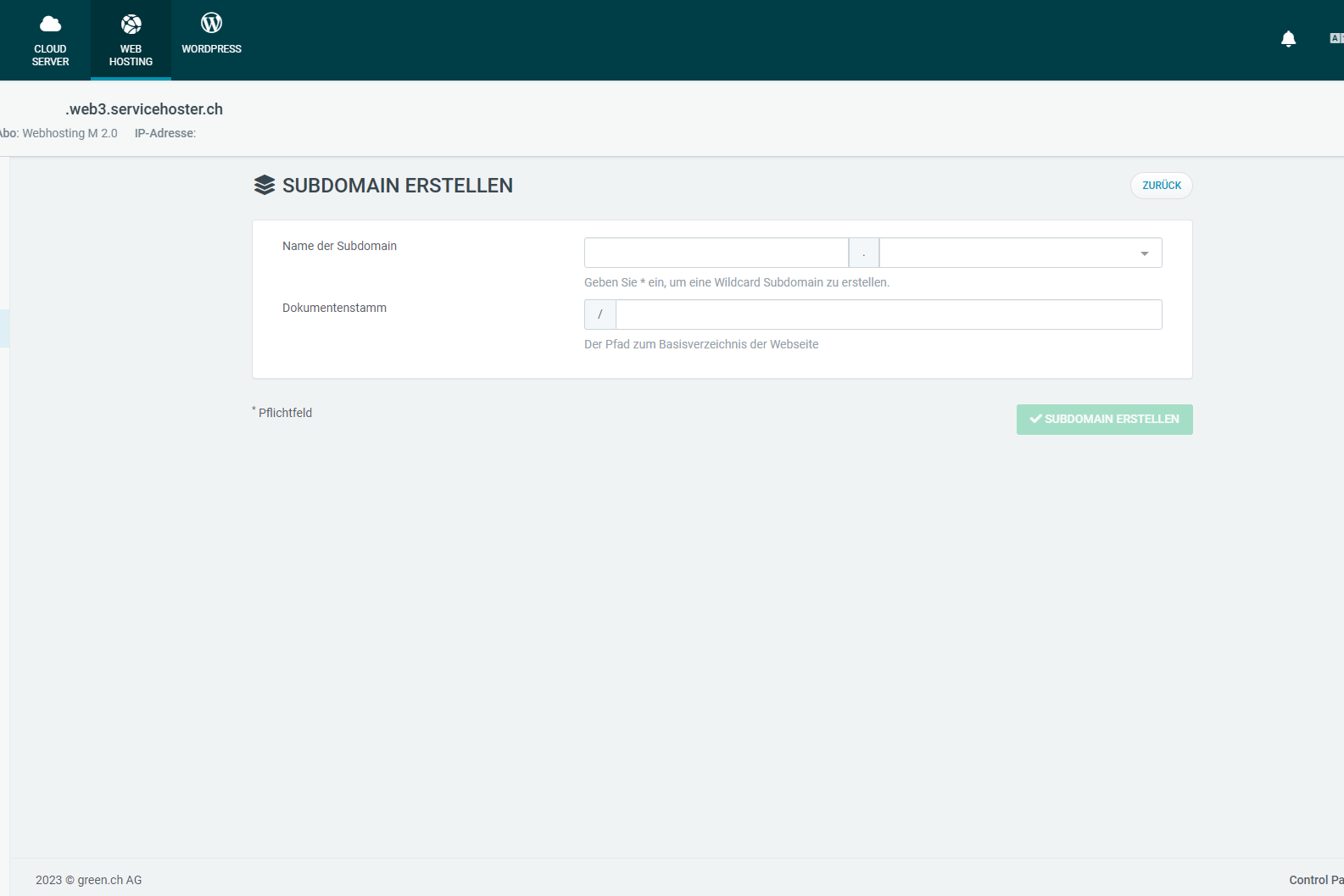
- Click «CREATE SUBDOMAIN».
- Enter the desired name of the subdomain.
- Select the desired document root.
- Save the subdomain.
Check the document root
The document root determines the directory from which the subdomain's content is loaded.
In the Web & Mail Control Panel, open the «Domains» section. In the overview, the corresponding document root is displayed to the right of each domain.
To check the assignment in more detail, select «Actions» for the desired domain and then «Edit Domain». The document root is displayed in the lower section.
Further information on the document root:
https://www.green.ch/en/change-the-document-root
DNS and subdomains
Subdomains can use their own DNS records and point to different content or services.
A wildcard record () is often used for the automatic resolution of subdomains. If this record is missing, an additional type A DNS record may be required for the relevant subdomain.
Further information on nameservers and DNS zones:
https://www.green.ch/en/nameservers-and-dns-explained
Further information on the DNS zone at Green:
https://www.green.ch/en/dns-zone-at-green
Further information on DNS management at Green:
https://www.green.ch/en/manage-dns-records
SSL certificates for subdomains
If a subdomain is to be accessed via HTTPS, a suitable SSL certificate is required.
SSL certificates for subdomains currently need to be ordered separately through Support. By default, SSL can only be ordered for the main domain. The certificate will then also cover existing subdomains.
Note: Create the required subdomains before ordering the SSL certificate. Then contact Support so that the certificate can be ordered for the subdomains.
Further information on SSL for subdomains:
https://www.green.ch/en/ssl-on-subdomains
If the subdomain is not accessible
- Check whether the domain is assigned to active hosting.
- Check whether the subdomain is listed in the Web & Mail Control Panel.
- Check the assigned document root.
- Check the domain's DNS zone.
- Check whether a wildcard record () or a dedicated type A DNS record exists for the subdomain.
- When accessing the subdomain via HTTPS, check whether a suitable SSL certificate is available.
Note: If the subdomain is still not accessible despite being created correctly and having the correct DNS configuration, additional technical processing may be required. In this case, contact Support.
Delete a subdomain
Subdomains listed in the «Subdomains» section can normally be created and deleted in the Web & Mail Control Panel.
- In the Web & Mail Control Panel, open the «Domains» section.
- Open «Subdomains».
- Select «Actions» for the relevant subdomain.
- Select «Delete Subdomain».
In some hosting environments that have been migrated to a new platform, existing subdomains may technically be managed as standalone domains. Such entries cannot be removed directly in the Web & Mail Control Panel.
Note: Before deleting the subdomain, check whether its document root still contains any required files or applications. If the subdomain is managed as a standalone domain in the Control Panel and cannot be deleted, contact Support.
Related topics
Further information on the settings of a domain connected to a hosting package:
https://www.green.ch/en/domain-settings-domain-connected-to-hosting-package
Web & Mail Control Panel

Um Ihre bereits erstellte Subdomain zu löschen, klicken Sie auf den grauen Button Aktionen. In der Auswahl wählen Sie Subdomain löschen.

Bestätigen Sie die Löschung in dem Sie auf dem roten Button Subdomain löschen klicken.
