FTP Connections via FileZilla Do Not Work
If the connection to your website via FileZilla does not work, incorrect login details or incorrect program settings are common causes.
Incorrect password
If an incorrect password is used, FileZilla may display the following error message:
Command: PASS **********
Response: 530 Login authentication failed
Error: Critical error
Error: Could not connect to server
Reset your FTP password and test the connection again.
Further information:
https://www.green.ch/en/file-transfer-protocol-ftp
Incorrect username
An incorrect username can also cause connection problems. FileZilla does not always display a clear error message in this case.
If the username has not been changed, it corresponds to the login name of the Web FTP access.
Further information:
https://www.green.ch/en/file-transfer-protocol-ftp
Note: If you are not sure which username to use and the connection continues to fail, contact Support.
Spaces caused by copying
When copying usernames or passwords, spaces may be copied unintentionally.
Check your entries carefully. Move the cursor through the field using the arrow keys. This allows you to identify whether there are any additional spaces before or after the visible characters.
Check FTP settings in FileZilla
Changed or incorrect settings in FileZilla may prevent a connection from being established or prevent data transfer even when a connection exists.
- Check the server type. It must be set to «FTP».
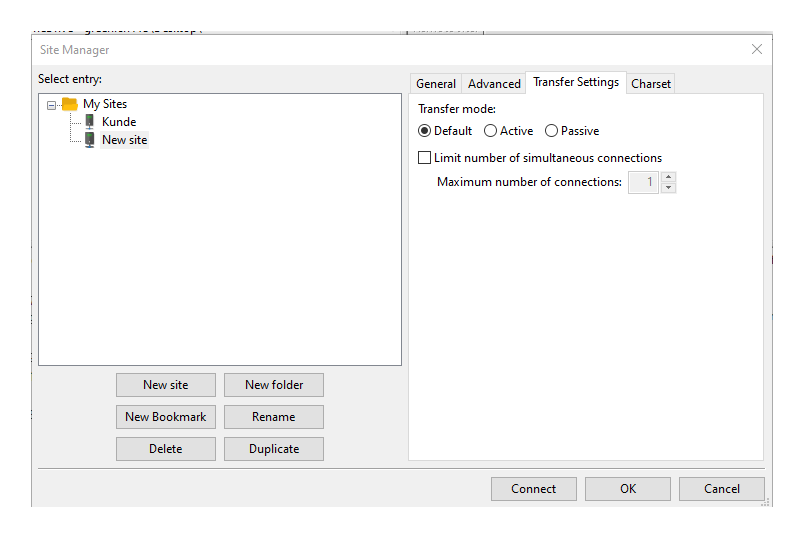
- Open the «Transfer Settings» tab.
- Check whether the transfer mode is set to «Default».
- Correct any differing settings and test the connection again.
An incorrect transfer mode may prevent data from being transferred even though the FTP connection has been established.
An overview of all required FTP access details can be found in the following article:
https://www.green.ch/en/file-transfer-protocol-ftp
Further information about FTP:
https://www.green.ch/en/ftp-access
WEB FTP:
https://www.green.ch/en/web-ftp
If you change your settings in the FTP client from time to time, it may happen that they are no longer correct.
Here we show you a short overview of the most important settings for using settings for the use of FileZilla.
1) During the setup, pay attention to the setting of the server type. This must be FTP or FTPES.
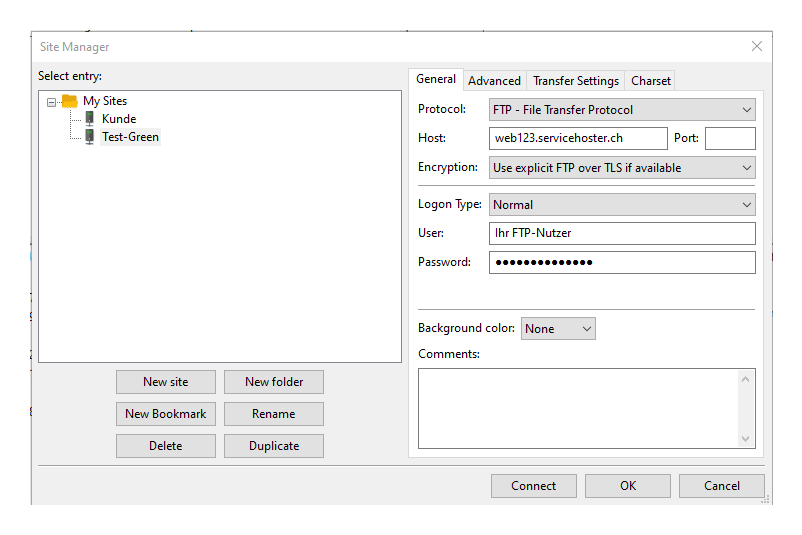
2) Under the tab "Transfer settings" please check if you have set the transfer mode correctly to "Standard". correctly set to "Standard". A deviation can lead to the fact that they can load despite
FTP connection, you will not be able to load any data.
.