
Green Talk Configuration on Yealink W73P IP Telephone
This guide describes how to configure Green Talk phone numbers on a Yealink W73P IP telephone.
Yealink IP telephones are delivered by Green preconfigured by default.
In this case, the Green Talk phone numbers are already set up.
Use this guide if your Yealink IP telephone was not preconfigured by Green.
Requirements
Connect the Yealink base station and handset according to the Yealink Quick Start Guide with power and router.
You can also find the SIP access data in the customer portal https://my.green.ch
my.green.ch
Further information about Green Talk can be found in the following article:
https://www.green.ch/en/talk-installation-and-configuration
Accessing the Base Station
- Open the menu on the handset using the central OK button.
- Open the Status menu item.
- Select Base.
- Check the IPv4 entry and note down the displayed IP address of the base station.
- Open a web browser on a PC or laptop connected to the same router.
- Enter the IP address of the base station into the address bar (example address: 192.168.178.35).
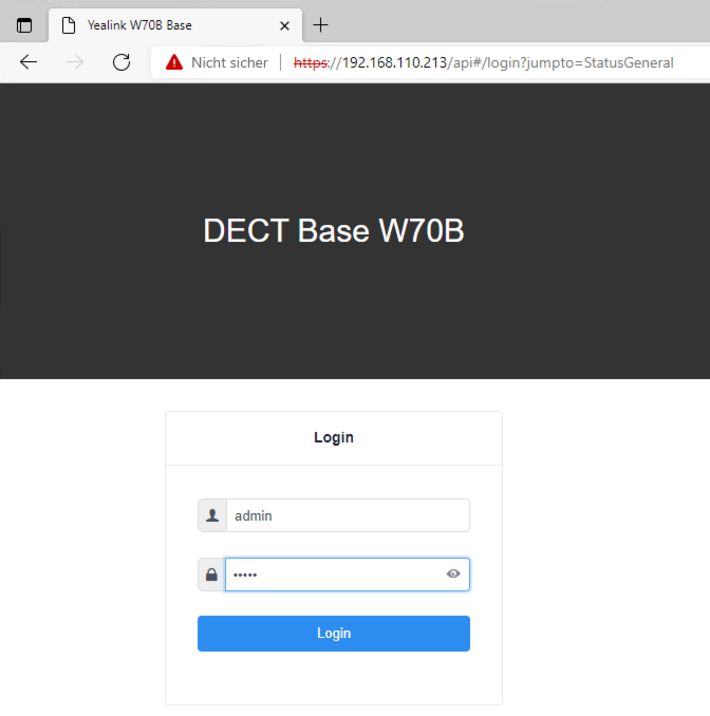
You can log in with the default user "admin" and the corresponding default password "admin".
Set up phone number
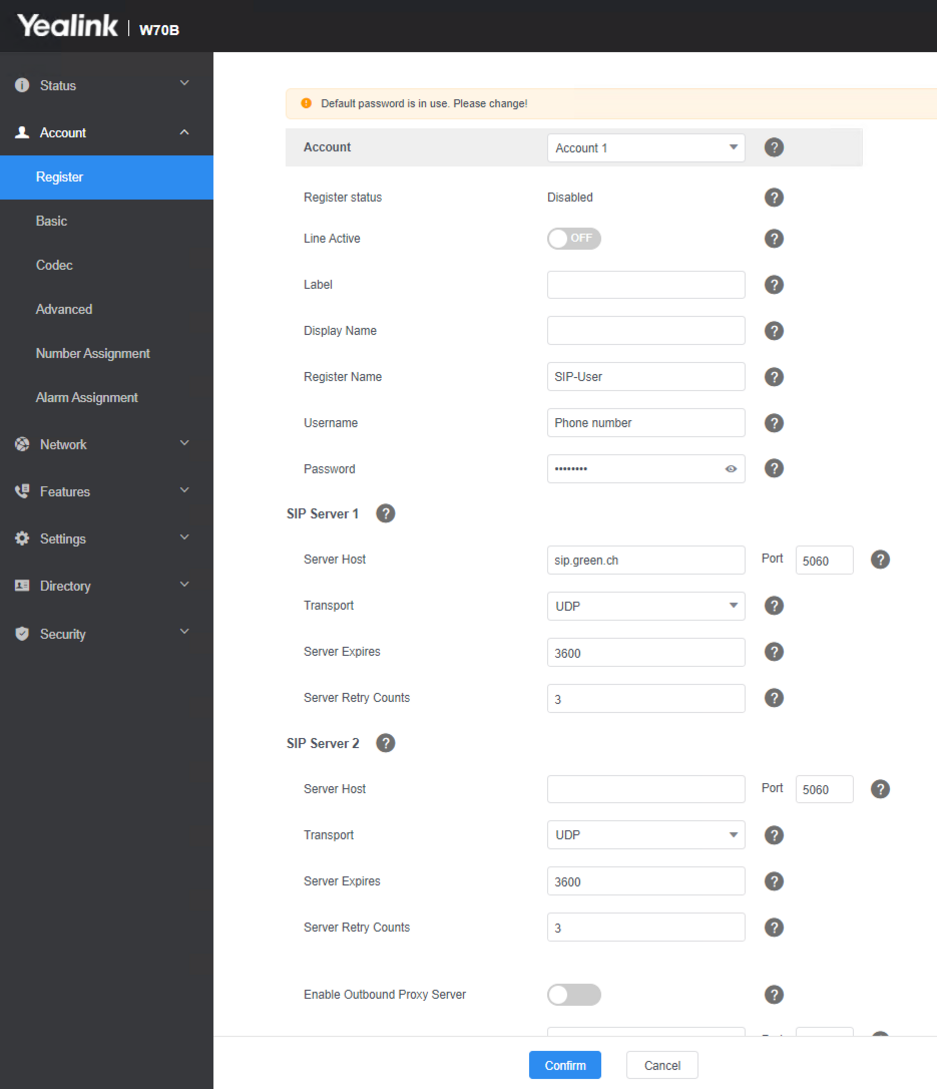
- Open the Account menu item.
- Select the account under which the phone number should be registered.
- Enable Line Active.
- Enter the SIP username in the Register Name field.
- Enter the phone number to be registered in the User Name field.
- Enter the SIP password in the Password field.
- Enter the value sip.green.ch in the Server Host field for SIP Server 1.
- Click Confirm.
The registration status of the selected account should then change to Registered.
The phone number is then ready for use.
You can also find the SIP credentials in the my.green customer portal.
Further information about telephony settings can be found in the following article:
https://www.green.ch/en/talk-settings-in-the-customer-portal
Time & Date Settings
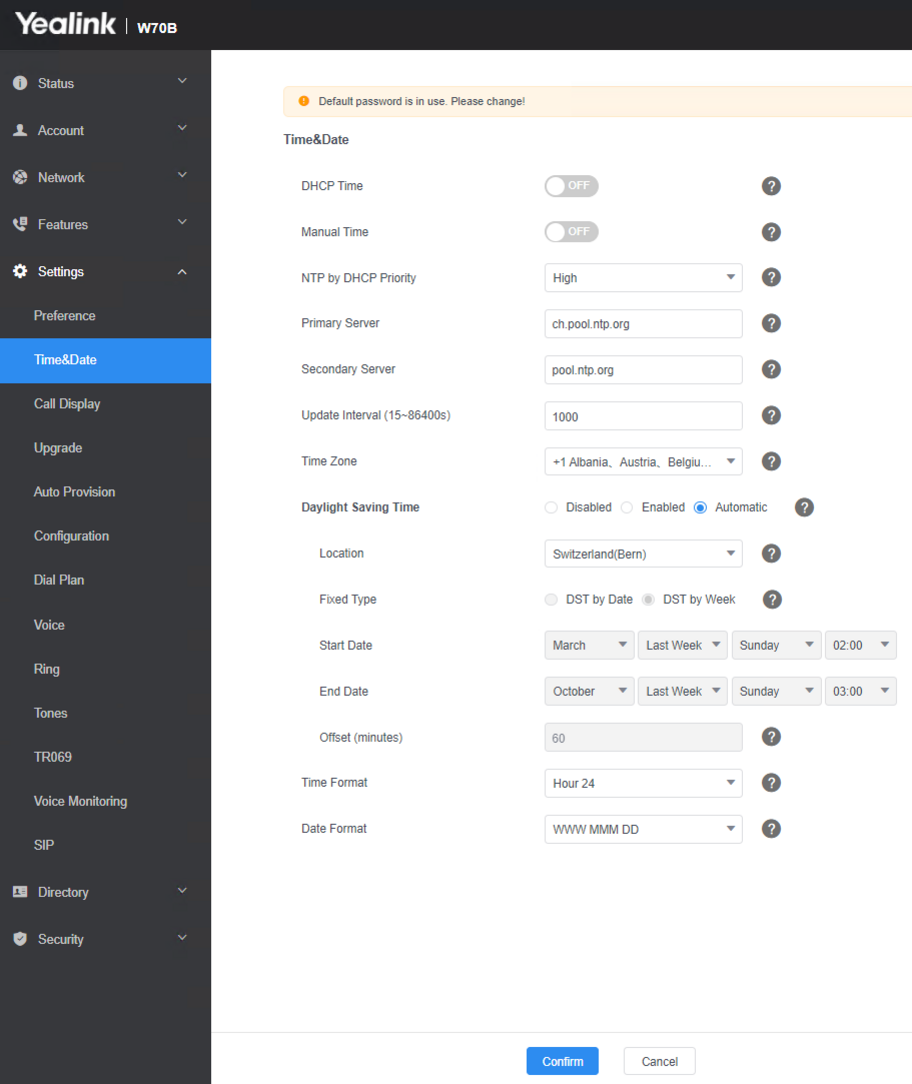
- Select "settings" on the left
- Open «Time&Date»
- Change primary server from cn.pool.ntp.org to ch.pool.ntp.org
- Change time zone to +1 Albania, Austria etc.
- Choose the «Location» Switzerland (Bern)
- Click on Confirm
Related Articles
Information about configuring Green Talk on a FRITZ!Box can be found in the following article:
https://www.green.ch/en/greentalk-configuration-on-an-avm-fritzbox
Information about configuration on a Gigaset IP phone can be found in the following article:
https://www.green.ch/en/configuring-talk-on-a-gigaset-ip-phone
Information about call forwarding and voicemail can be found in the following article:
https://www.green.ch/en/call-forwarding-and-voicemail
Information about setting up the answering machine can be found in the following article:
https://www.green.ch/en/set-up-an-answering-machine-from-green