
greenTalk Configuration on an AVM FRITZ!Box
If you ordered a greenTalk phone number together with an Internet subscription, the phone number is configured automatically as soon as the FRITZ!Box has established an Internet connection.
If the phone number needs to be configured manually, you can complete the setup by following the steps below.
This guide explains how to set up your greenTalk phone number on an AVM FRITZ!Box. You can find the required SIP credentials in the customer portal under «Telephony».
Requirements
- An operational FRITZ!Box with an Internet connection
- Your greenTalk SIP credentials from the customer portal
- Username and password for the FRITZ!Box
Note: Never share your SIP credentials with third parties and keep them in a secure place.
Accessing the FRITZ!Box
First, you need to connect to the FRITZ!Box user interface. Make sure that your computer is connected to the FRITZ!Box via a LAN cable or Wi-Fi. Then enter "fritz.box" or "192.168.178.1" in the address bar of your Internet browser (e.g. Firefox or Internet Explorer). The FRITZ!Box is already password-protected in its factory settings. You can find this password on the label on the back of your FRITZ!Box in the «FRITZ!BOX password» field. If you have not changed this password, you can use it to access the FRITZ!Box user interface.
- Connect a computer to the FRITZ!Box.
- Open a web browser.
- Go to fritz.box or, alternatively, the IP address 192.168.178.1.
- Log in using the password for your FRITZ!Box.
Adding a New Phone Number
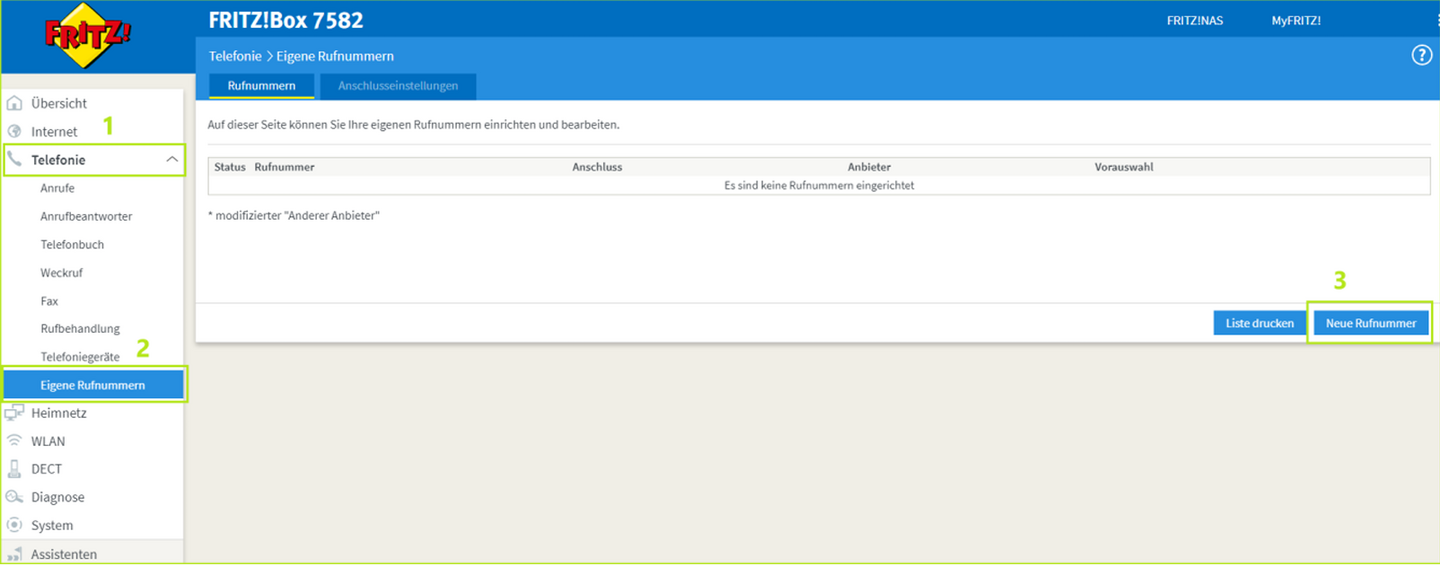
On the left-hand side, navigate to Telephony > Telephone Numbers and then click «New Telephone Number».
2.2 Enter the Phone Number
Enter the SIP details (greenTalk credentials) and adjust the settings as shown in the image below. You can find the SIP details in your my.green customer portal under «Telephony».
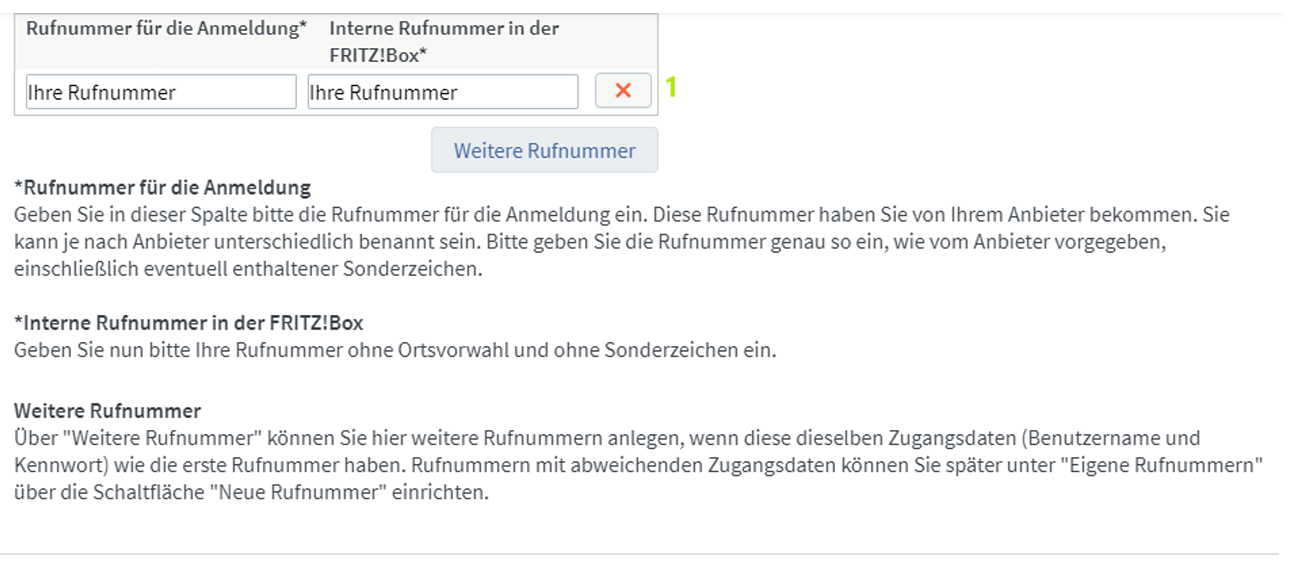
Telephone number for registration
Enter the telephone number used for registration in this field. You received this telephone number from your provider. Its name may vary depending on the provider. Enter the telephone number exactly as specified by the provider, including any special characters it may contain.
Internal telephone number in the FRITZ!Box
Now enter your telephone number without the area code and without special characters.
Additional telephone number
Under "Additional telephone number", you can add further telephone numbers if they use the same credentials (username and password) as the first telephone number. You can set up telephone numbers with different credentials later under "Telephone Numbers" using the "New Telephone Number" button.
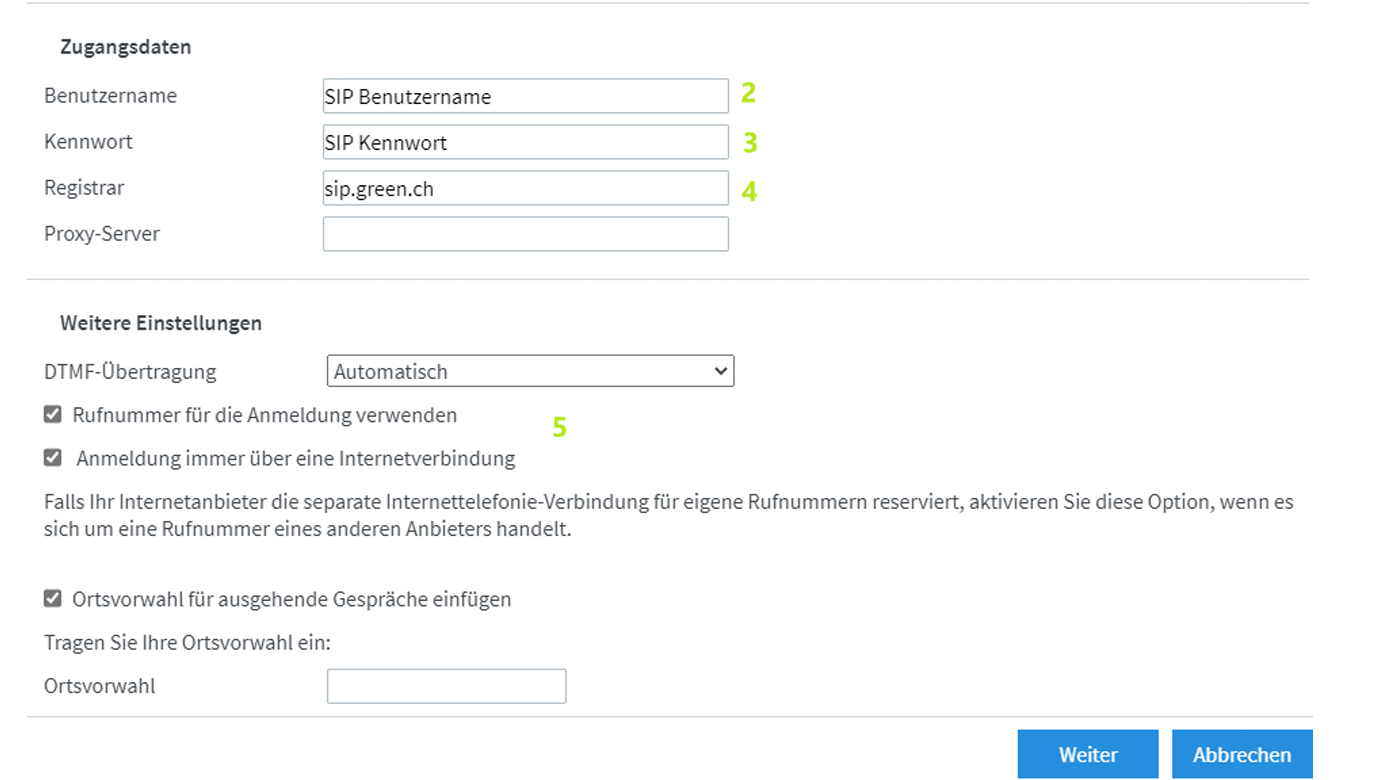
- Enter the telephone number with the area code and without spaces
- SIP username (14-digit number with a full stop)
- SIP password (12 characters consisting of letters and numbers)
- Enter the default value «sip.green.ch»
- Select the checkbox
- Then click «Next»
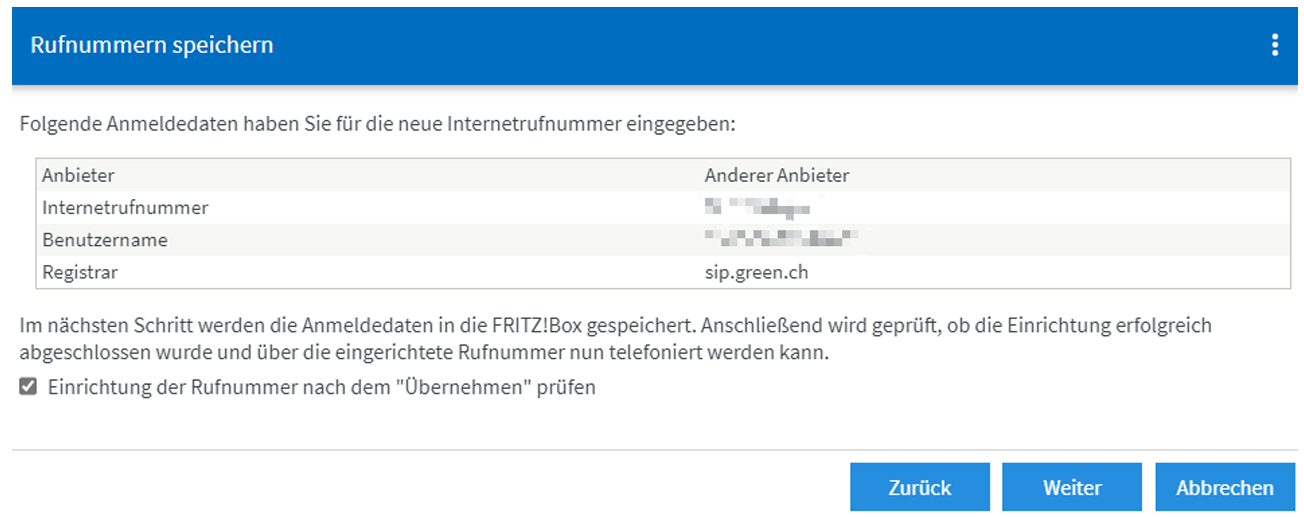
2.3 Save the Phone Number
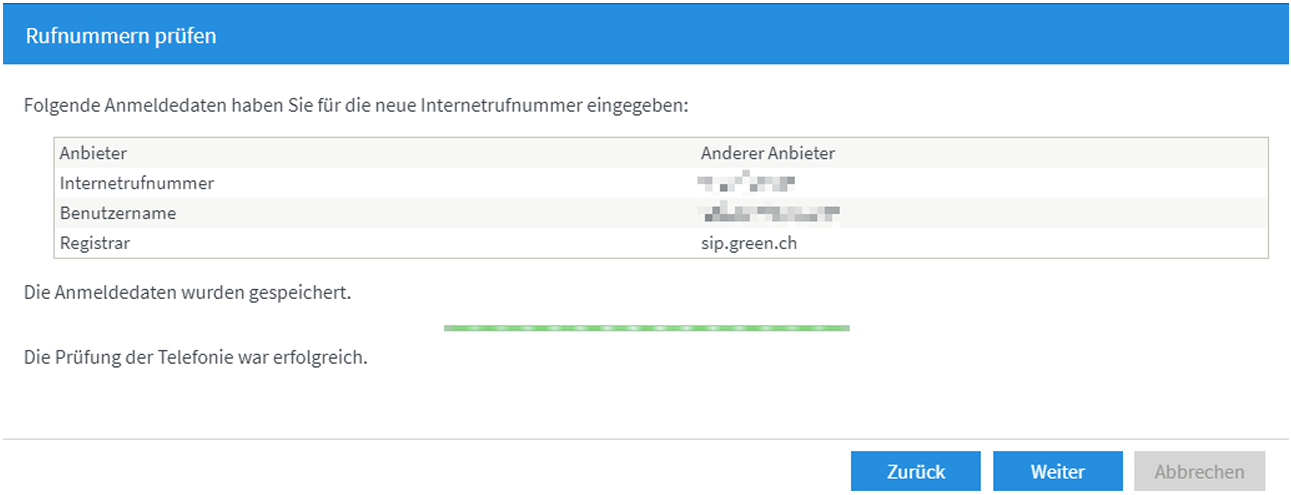
The FRITZ!Box now displays the credentials you entered.
- Check the details.
- Click «Next».
2.4 Check the Phone Number
Your FRITZ!Box now saves the credentials for your phone number and checks the connection. If the check fails, verify the settings according to section 2.2 Enter the Phone Number and check your Internet connection.
The FRITZ!Box then checks the connection to the greenTalk server.
If the check is successful, the phone number is activated and can be used.
If the check fails, verify the following:
- Username and password
- Telephone number including the area code
- Internet connection
- Registrar entry sip.green.ch
2.5 Assign the Phone Number to a Telephone
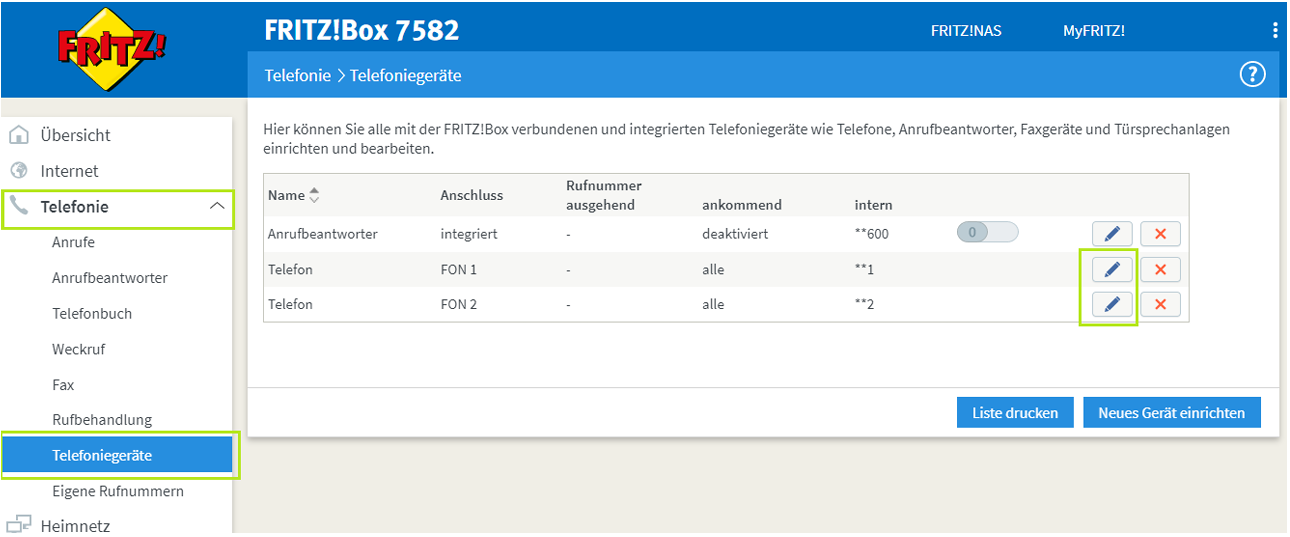
By default, your connected telephones respond to all configured phone numbers and use the first configured phone number for outgoing calls. Under the Telephony → Telephone Devices menu, you can change the behaviour of each telephone device by clicking the edit icon.
Once the setup has been completed successfully, the phone number can be assigned to a telephone device.
- Open «Telephony > Telephone Devices».
- Select the required telephone or connection.
- Click the edit icon.
- Select the required phone number for incoming and outgoing calls.
- Save the settings.
Frequently Asked Questions
Where can I find my SIP credentials?
You can find the SIP credentials in the customer portal under «Telephony».
You can find further information about the telephony settings here:
https://www.green.ch/en/talk-settings-in-the-customer-portal
https://www.green.ch/en/talk-in-the-customer-console
Which Registrar Must Be Used?
For greenTalk, sip.green.ch must always be entered as the registrar.
The Phone Number Cannot Be Registered. What Can I Do?
Check the following details:
- SIP username
- SIP password
- Telephone number including the area code
- Internet connection
- Registrar entry sip.green.ch
Note: If the phone number still cannot be registered despite the details being correct, contact Support.
Can I Set Up Multiple Phone Numbers?
Yes. Additional phone numbers can be added under «Telephony > Telephone Numbers > New Telephone Number».
Related Topics
Register a cordless phone with a FRITZ!Box:
https://www.green.ch/en/register-your-cordless-phone-with-fritzbox
Set up an answering machine from Green:
https://www.green.ch/en/set-up-an-answering-machine-from-green
Call Forwarding and Voicemail:
https://www.green.ch/en/call-forwarding-and-voicemail
Talk Installation and Configuration:
https://www.green.ch/en/talk-installation-and-configuration
Green Talk Configuration on a Yealink W73P IP Telephone:
https://www.green.ch/en/green-talk-configuration-on-yealink-w73p-ip-telephone
Configuring Talk on a Gigaset IP Phone:
https://www.green.ch/en/configuring-talk-on-a-gigaset-ip-phone
Fixed-Line Telephony: TopStop Limit:
https://www.green.ch/en/fixed-line-telephony-topstop-limit