
IPCall on iPhone, iPad or Android Devices
With the IPCall app for iPhone, iPad and Android devices, you can set up your greenTalk phone number on your smartphone and use it to make calls. This allows you to use your fixed-line number while on the go without having to forward calls to a mobile number.
Requirements
- Active greenTalk phone number
- Access to your customer account at my.green.ch
- Internet connection via Wi-Fi or a mobile data network
- IPCall app from Nexphone AG installed
You can find more information about greenTalk in the following article:

Table of Contents
1. Download the App
2. Log In to my.green.ch
3. Add a New Mobile Device
4. Complete the Setup on Your Smartphone
5. Troubleshooting
6. Notes
1. Download the App
- Download the IPCall app from the Apple App Store or the Google Play Store.
- Ensure that Nexphone AG is listed as the publisher.
2. Log in to my.green.ch
- Log in to my.green.ch.
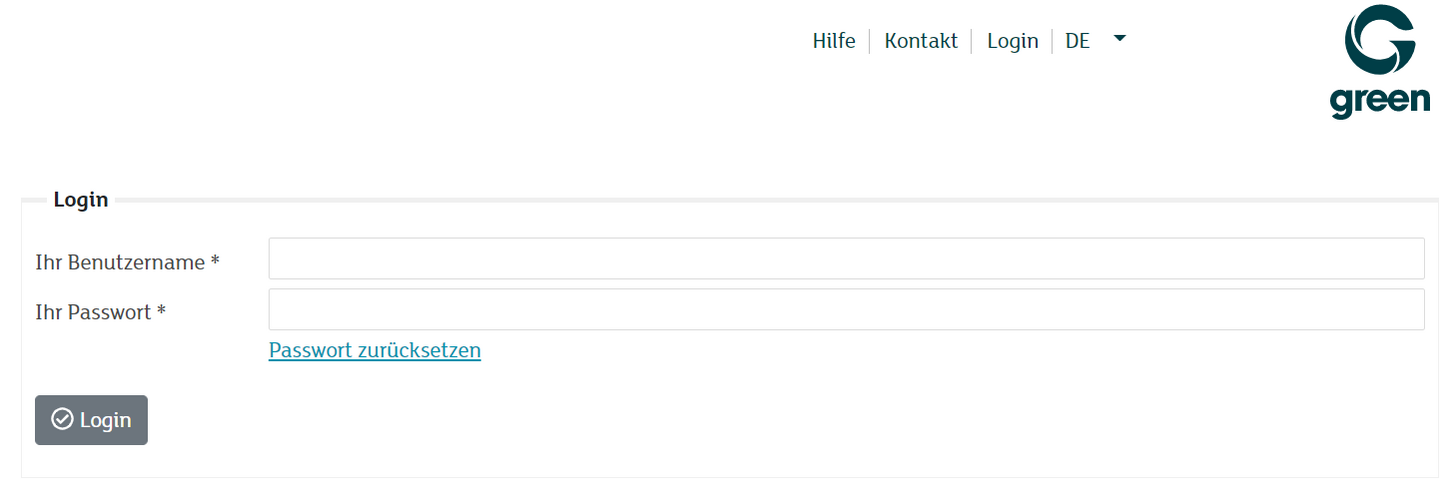
- Open the Telephony section.
3. Add a New Mobile Device
- Log in to my.green.ch.my.green.ch/</span>
- Open the Telephony section.
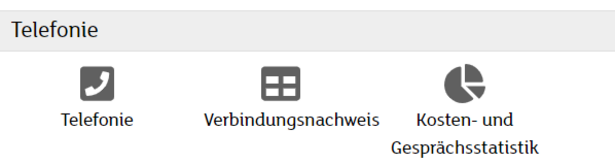
- If you have multiple greenTalk phone numbers, select the desired phone number.
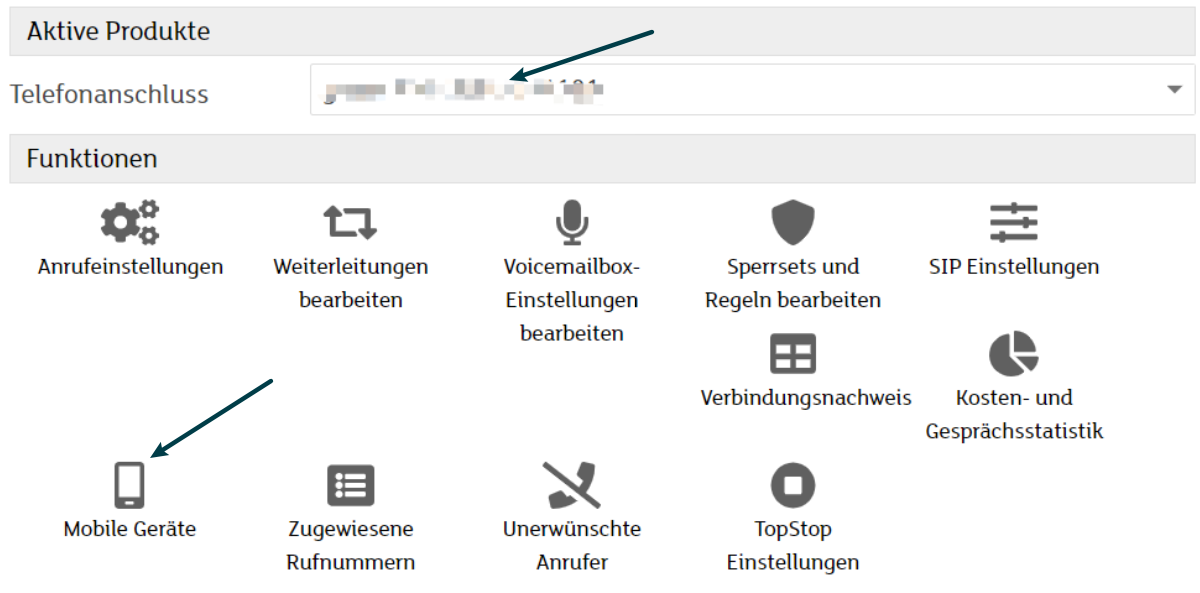
- Open the Mobile Devices section.
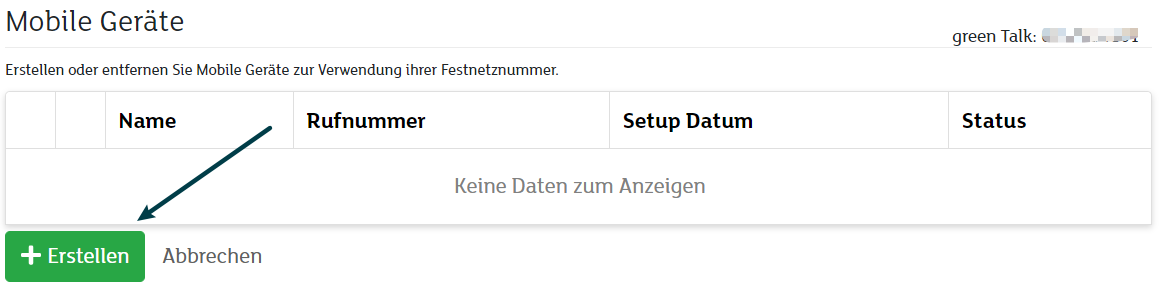
- Click on Create.
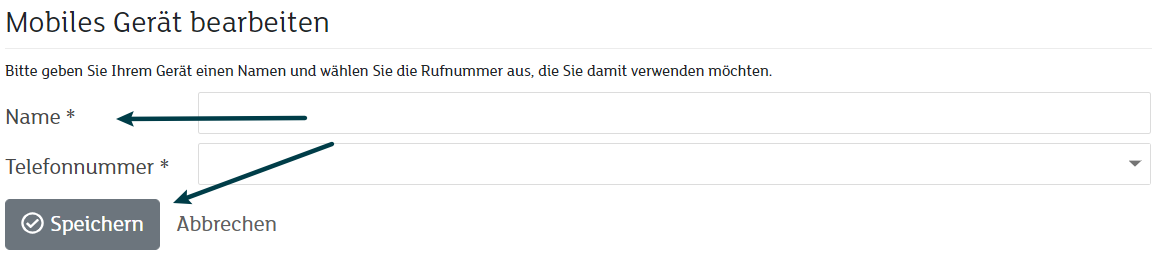
- Enter a unique name for the device.
- Select the desired phone number.
- Click Save.
After saving, a QR code for activating the device will be generated.
4. Complete the Setup on Your Smartphone
- Launch the IPCall app.
- Select Scan QR.
- Scan the QR code displayed in the customer portal.
- Wait until the app has been configured automatically.
- Check whether the registration was completed successfully and the keypad is displayed.
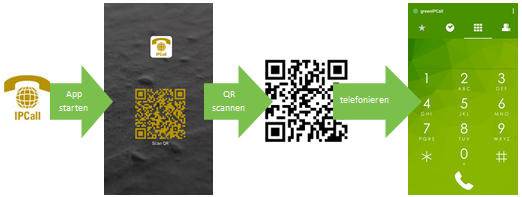
After successful setup, you can make calls using your greenTalk phone number, manage contacts and import contacts from your smartphone.
5. Troubleshooting
5.1 General Issue
- Uninstall the IPCall app.
- Reinstall the app.
- Set up the app again using the QR code.
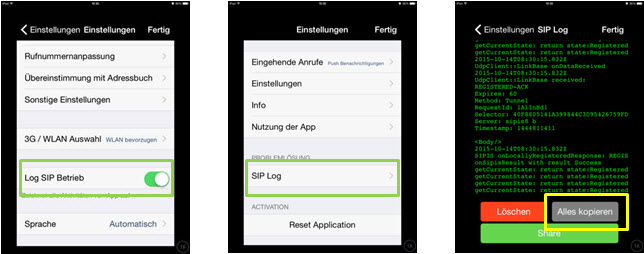
If the problem persists, enable SIP logging.
- Open the keypad.
- Open Settings in the top right corner.
- Open the Settings submenu.
- Enable the Log SIP Operation option.
- Return to the first Settings menu.
- Open SIP Log.
- Select Copy All.
Note: If the issue persists, send the SIP logs to Support for analysis.
5.2 QR Code Cannot Be Scanned
If the camera is not activated when scanning or the image remains dark, the app does not have access to the camera.
- Open the app permissions on your device.
- Allow the IPCall app to access the camera.
- Try scanning again.
The activation code is valid only once and only for a short period of time.
Note: If activation fails, generate a new activation code in the customer portal and scan the new QR code. (see step 3)
5.3 My Call Partner Cannot Hear Me
If the person you are speaking with cannot hear you, the app may not have access to the microphone.
- Open the app permissions on your device.
- Check whether microphone access is allowed for the IPCall app.
- Enable microphone access if required.
6. Important Notes
6.1 Internet Connection
The app can only be used when an active internet connection is available. This can be via Wi-Fi or the mobile data network.
6.2 Additional Charges - Mobile Data and Roaming
Depending on your mobile provider subscription, charges for data usage may apply when using the mobile data network.
Additional roaming charges from your mobile provider may apply when using the app abroad.
Related Articles
You can find more information about your telephony settings in the following article:
https://www.green.ch/en/talk-settings-in-the-customer-portal
You can find information about call forwarding and voicemail in the following article:
https://www.green.ch/en/call-forwarding-and-voicemail
You can find information about setting up the answering machine in the following article:
https://www.green.ch/en/set-up-an-answering-machine-from-green