
Hosted Exchange: Create a Distribution Group in EdgePilot
Note: This help article applies only to Hosted Exchange. If you are not sure which email service you use, you can find more information in the following article.
https://www.green.ch/en/which-email-service-do-i-use
A distribution group allows incoming emails to be distributed automatically to multiple recipients at the same time. Instead of sending a message individually to several people, the email is sent to a shared group address and then delivered to the registered members.
Requirements
To create a distribution group, you need an EdgePilot user with administrator permissions.
You can find further information about administrator permissions in the following article:
https://www.green.ch/en/how-do-i-assign-admin-permissions-to-a-user
What Is a Distribution Group?
A distribution group does not have its own user account or mailbox. It is used exclusively to distribute messages to multiple members.
Example:
- Distribution group: verkauf@beispiel.ch
- Members: max@beispiel.ch, anna@beispiel.ch and peter@beispiel.ch
A message sent to verkauf@beispiel.ch is automatically delivered to all members of the distribution group.
Difference from Other Functions
- Mail alias: Additional email address for an existing mailbox.
- Forwarding: Automatically forwards messages to another internal or external email address.
- Contact: Directory object for an external email address, for example as the destination of a forwarding rule.
- Distribution group: Distributes incoming messages to multiple members at the same time.
A distribution group is not the same as a shared mailbox. Messages are distributed to the members’ mailboxes and are not stored in a shared mailbox.
Create a Distribution Group
Open the EdgePilot administration portal:
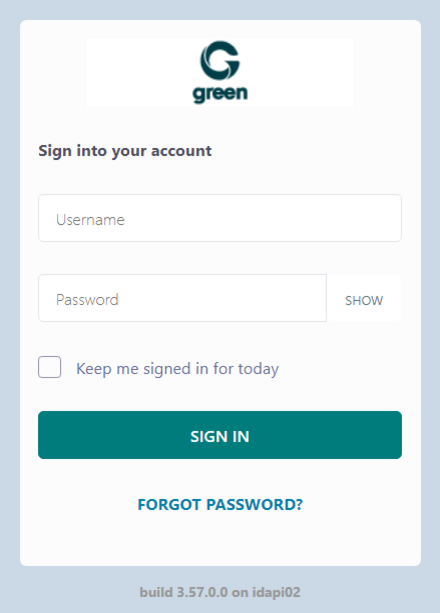
- Sign in with your administrator credentials.
- Open Exchange.
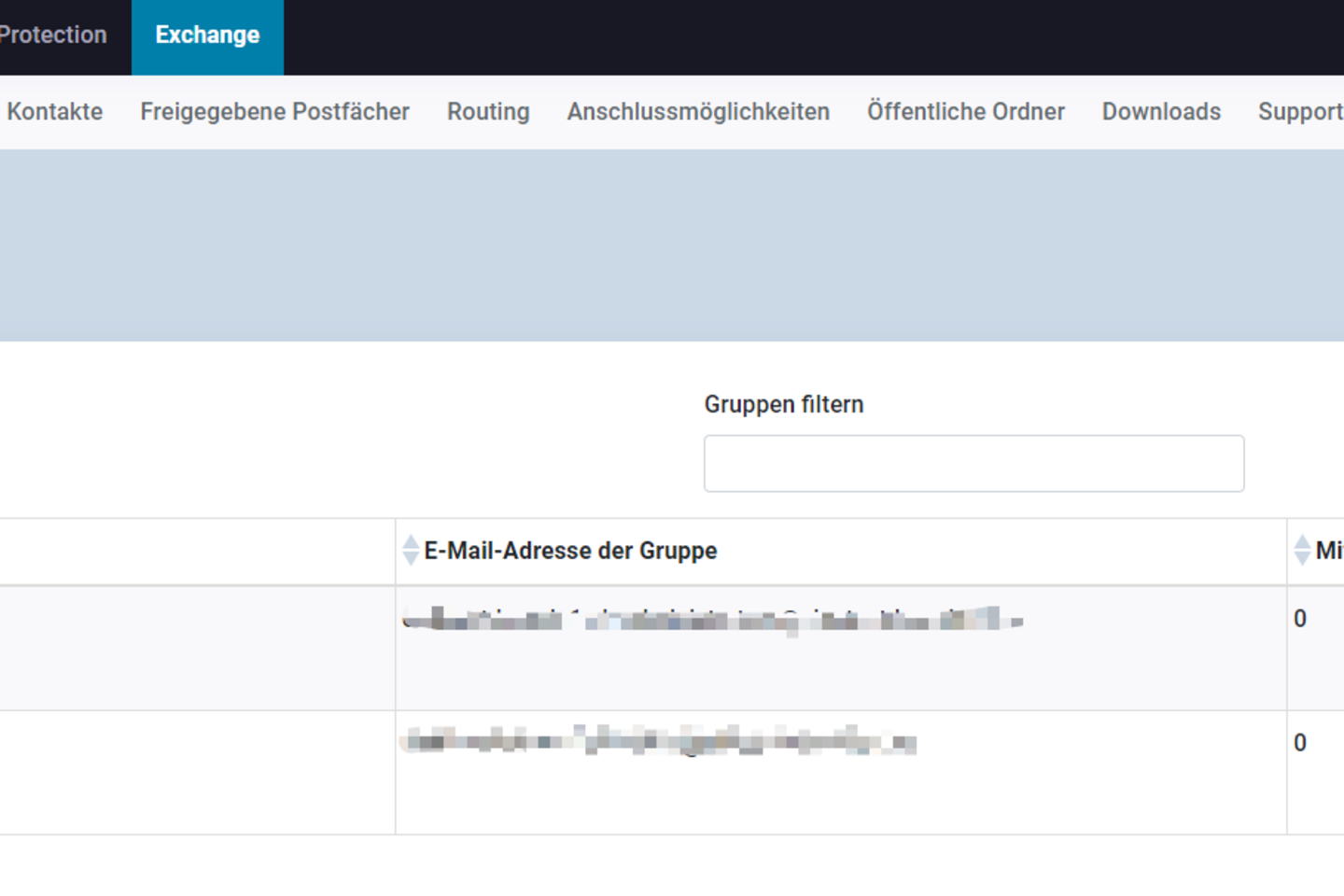
- Select Groups.
- Click Add Group.
- Enter the desired group details under Group Name.
- Select the desired users under All Members.
- Select the corresponding checkbox for the desired members.
- Click Save New Group.
The distribution group is created and distributes incoming messages to the selected members.
Manage Members of a Distribution Group
Existing distribution groups can be edited under Exchange and Groups.
After making changes, check whether:
- all desired users are members of the distribution group,
- members who are no longer required have been removed,
- messages sent to the distribution group are delivered as expected.
Typical Uses
Distribution groups are suitable for:
- Sales departments
- Support teams
- Project groups
- Shared functional addresses
- Internal information distribution lists
All members receive a copy of the incoming message.
When Should a Distribution Group Not Be Used?
A distribution group is not suitable when several people work in a shared mailbox and need to see the same set of messages.
A distribution group is also not suitable when an additional email address only needs to be assigned to an existing user. In this case, a mail alias is the appropriate solution.
Related Articles
Mail aliases, forwarding and distribution groups:
https://www.green.ch/en/hex-mail-aliases-forwarding-and-distribution-groups
Create a mail alias:
https://www.green.ch/en/hosted-exchange-create-mail-alias-in-edgepilot
Create a contact:
https://www.green.ch/en/hosted-exchange-create-contact-in-edgepilot
Create a user:
https://www.green.ch/en/hosted-exchange-create-user-in-edgepilot
Hosted Exchange overview:
https://www.green.ch/en/all-about-hosted-exchange
1. To create a distribution group, log in to green.edgepilot.com using your administrator access.
2. Now click on the heading "Exchange" and then on "Groups".
Now navigate to the menu item "Add group".
Now enter the information under Group name according to your wishes/specifications.
Select the desired members in the box under "All members" by checking the respective box.
Now select the menu item "Save new group".
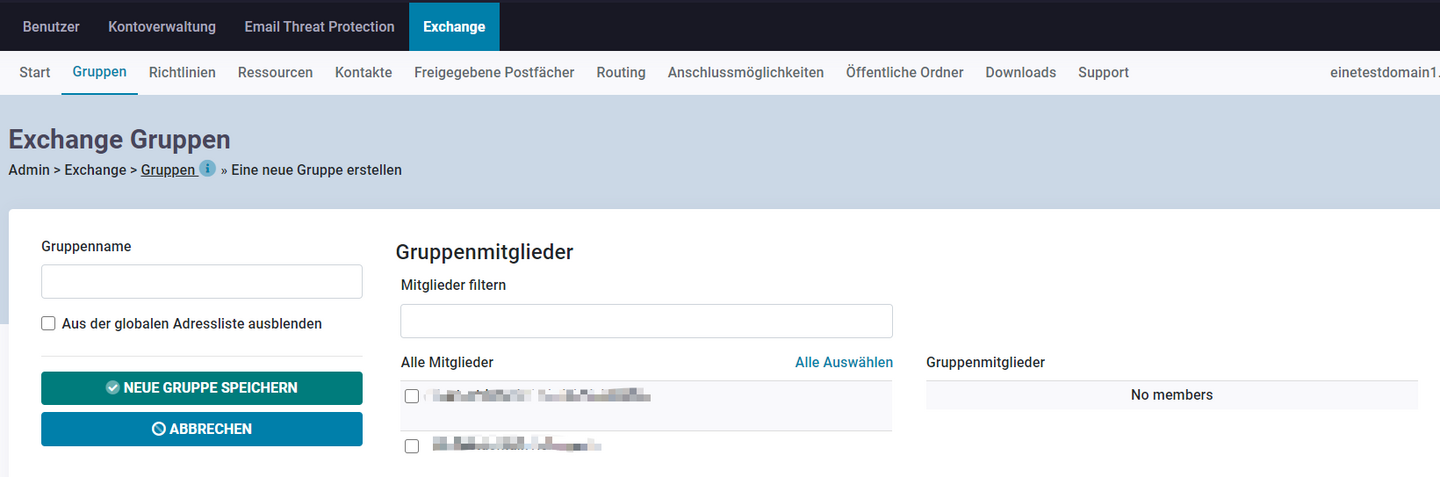
Now you have created the group.