
Hosted Exchange: Create a Mail Alias in EdgePilot
Note: This help article applies only to Hosted Exchange. If you are not sure which email service you use, you can find further information in the following article.
https://www.green.ch/en/which-email-service-do-i-use
A mail alias is an additional email address assigned to an existing Hosted Exchange mailbox. Emails sent to the alias are delivered directly to the assigned mailbox.
A mail alias does not create a separate mailbox. It does not have its own password or separate sign-in.
Mail Alias
A mail alias allows an existing mailbox to be reached through multiple email addresses.
Example
- Primary address: info@beispiel.ch
- Alias: kontakt@beispiel.ch
Messages sent to both addresses are received in the info@beispiel.ch mailbox.
Typical uses for a mail alias include:
- an alternative spelling of a name
- a functional address such as contact@, support@ or sales@ whose messages are to be delivered to the existing mailbox
- continued use of a previous email address
Note: A mail alias is not a separate mailbox. If an email address requires its own sign-in, password or mailbox storage, you must create a user or mailbox for it.
Requirements
- The Hosted Exchange mailbox already exists in EdgePilot.
- You have an EdgePilot user with administrator permissions.
A normal mailbox user does not automatically have administrator permissions. You can find further information about assigning administrator permissions in the following article:
https://www.green.ch/en/how-do-i-assign-admin-permissions-to-a-user
Create a Mail Alias in EdgePilot
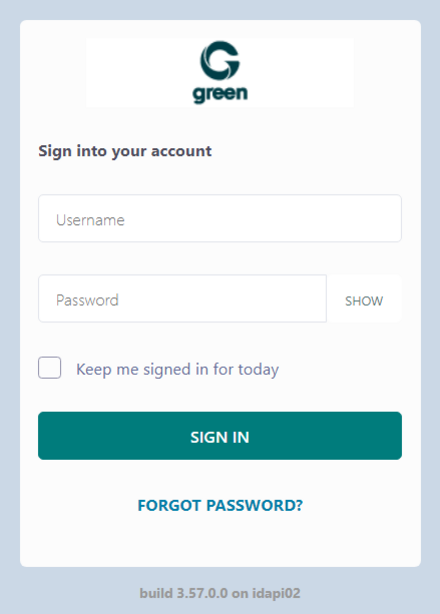
Open the EdgePilot portal at the following address:
- Sign in with your administrator account.
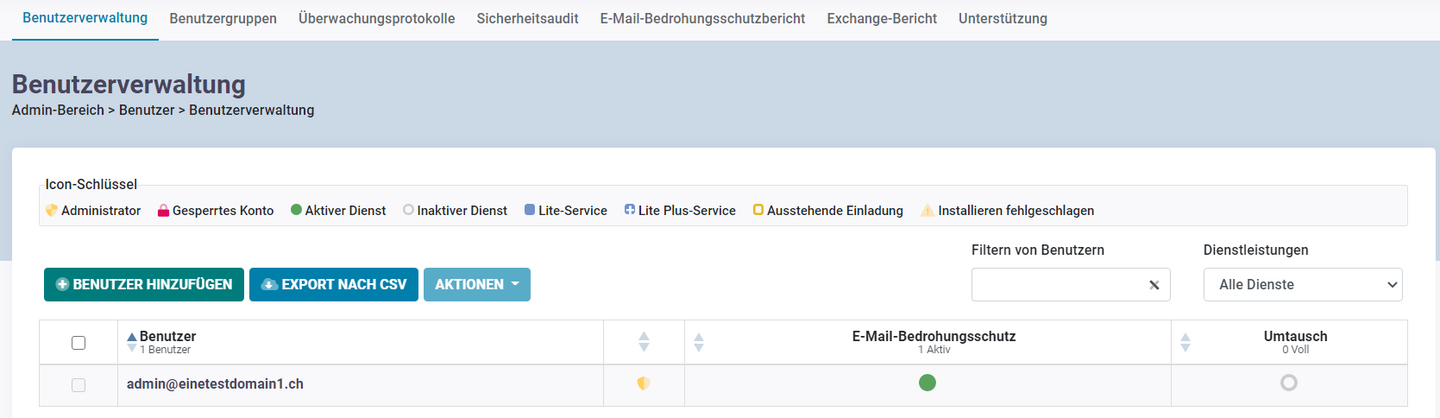
- Open Users.
- Select User Management. This section is normally already displayed as the landing page after sign-in.
- Select the user or mailbox to which you want to assign the alias.
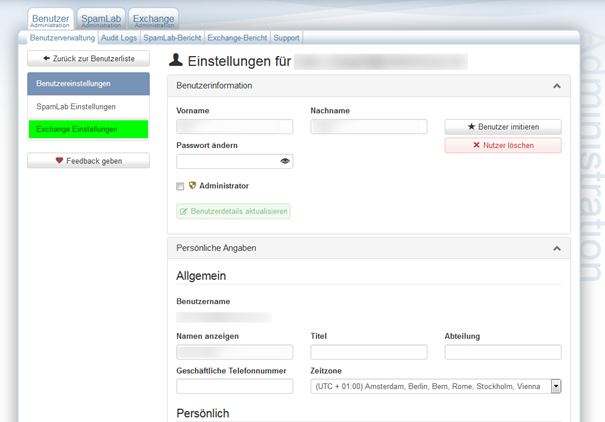
- Open Exchange Settings.
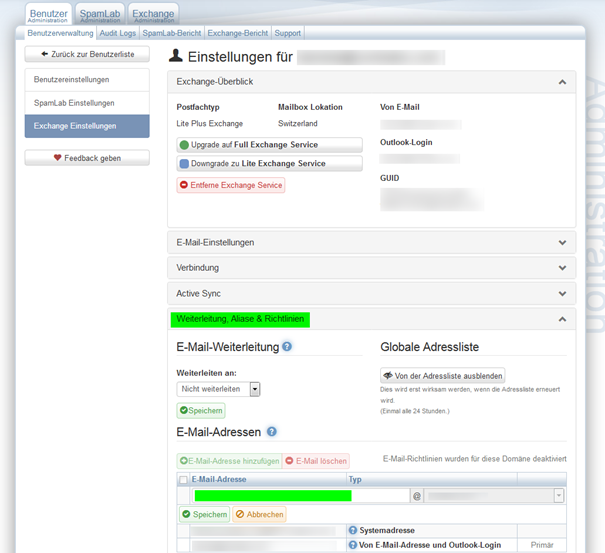
- Select Forwarding, Aliases & Policies.
- Select Add Email Address.
- Enter the required alias in the Email Address field.
- Select Save.
The alias is then assigned to the selected mailbox. Messages sent to the additional email address are delivered to the existing mailbox.
Change Existing Settings
Mail aliases are managed under the respective user or mailbox.
- Sign in to EdgePilot.
- Open Users.
- Select User Management.
- Open the required user.
- Open Exchange Settings.
- Select Forwarding, Aliases & Policies.
- Edit or remove the required alias address.
- Save the change.
After the change, check whether the alias is assigned to the correct mailbox and whether messages are delivered as intended.
Note: If you cannot create, change or save an alias, first check whether your EdgePilot user has administrator permissions.
Differences Between a Mail Alias, Forwarding, Contact and Distribution Group
Mail Alias
A mail alias is an additional email address for an existing mailbox. It does not have its own mailbox, password or separate sign-in. Messages are received in the assigned mailbox.
Forwarding
Forwarding automatically sends incoming messages to another internal or external email address. Depending on the configuration, a copy of the message may remain in the original mailbox.
Contact
A contact is a directory object for an external email address. When forwarding to an external email address, it may be necessary to create the destination address as a contact in EdgePilot first.
You can find further information about creating an external contact in the following article:
https://www.green.ch/en/hosted-exchange-create-contact-in-edgepilot
Distribution Group
A distribution group distributes incoming messages to multiple members at the same time. It does not have a personal user mailbox or its own user sign-in.
You can find further information about creating a distribution group in the following article:
https://www.green.ch/en/hosted-exchange-create-a-distribution-group-in-edgepilot
You can find further information about mail aliases, forwarding and distribution groups in the following article:
https://www.green.ch/en/hex-mail-aliases-forwarding-and-distribution-groups
Related Articles
You can find further information about Hosted Exchange in the following article:
https://www.green.ch/en/all-about-hosted-exchange
If you need a separate mailbox instead of an alias, you can find instructions for creating a user in the following article:
https://www.green.ch/en/hosted-exchange-create-user-in-edgepilot
Questions / Unclear Points
- It is not clear whether and under which conditions a mail alias can be used as a sender address.
- The maximum number of permitted mail aliases is not specified.
1. To create a mail alias, log in to green.edgepilot.com with your administrator access.
2. Now click on the menu item "User" and then on "User administration". This step is to ensure that you are in the correct menu item. After entering the customer portal, this is (by default) the start page.
Now click on the desired user.
3.Now click on the menu item "Exchange settings".
4. Select the menu item "Redirects, Aliases & Policies".
Now click on the menu item "Add e-mail address".
Now insert the desired alias in the line under e-mail address and confirm the change with the "Save" button.
Now you have created the alias.