
Hosted Exchange: Upgrade Mailbox in EdgePilot
Note: This help article applies only to Hosted Exchange. If you are not sure which email service you use, you can find further information in the following article.
https://www.green.ch/en/which-email-service-do-i-use
An upgrade assigns a higher mailbox type to an existing Hosted Exchange mailbox. This provides the user with additional features and an expanded range of services.
Requirements
- The user and mailbox already exist in EdgePilot.
- A Hosted Exchange service is already assigned to the mailbox.
- You have administrator permissions for the Hosted Exchange organisation.
Normal mailbox users do not automatically have administrator permissions. You can find further information about assigning administrator permissions in the following article:
https://www.green.ch/en/how-do-i-assign-admin-permissions-to-a-user
Upgrade a Mailbox in EdgePilot
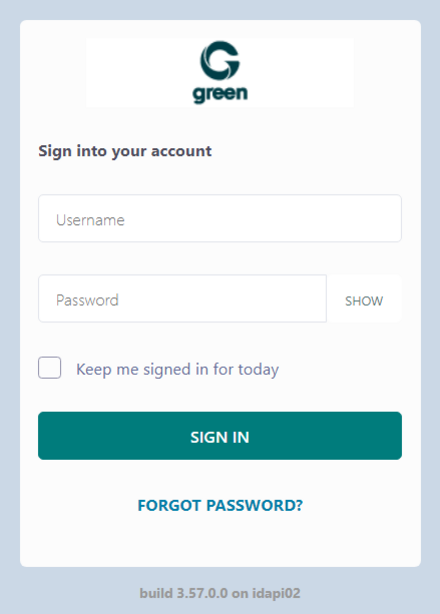
Open the EdgePilot portal at the following address:
- Sign in with your administrator account.
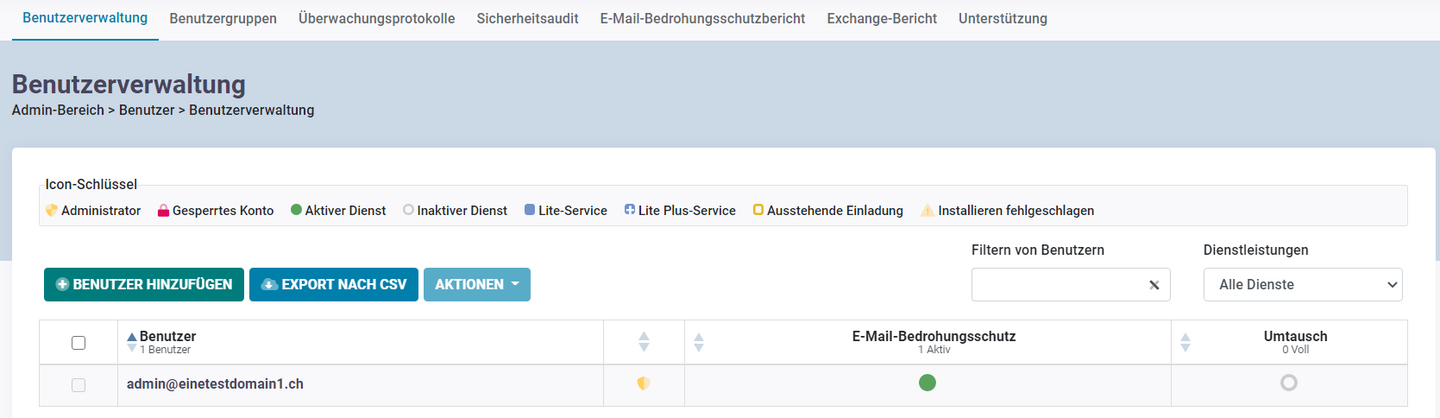
- Open Users.
- Select User Management.
- Select the user whose mailbox you want to upgrade.
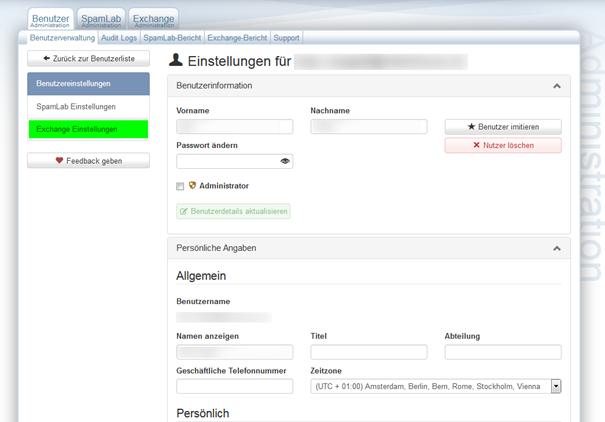
- Open Exchange Settings.
- Select Upgrade to Lite Plus Exchange Service or Upgrade to Full Exchange Service.
No additional confirmation is required after selection. The selected mailbox type is then assigned to the mailbox.
Differences Between Mailbox Types
Hosted Exchange offers the mailbox types Lite, Lite Plus and Full. The mailbox types differ in terms of storage space, supported technologies and available features.
Lite
- Technology: IMAP or POP
- 2 GB storage space
- Email synchronisation
Lite Plus
- Technology: MAPI
- 25 GB storage space
- Mobile Push
- Synchronisation of emails, calendars and contacts
Full
- Technology: MAPI
- Unlimited storage space
- Mobile Push
- Outlook licence included
- Synchronisation of emails, calendars and contacts
- Advanced Exchange features
Lite uses IMAP or POP and is primarily suitable for email synchronisation. Calendars and contacts are not automatically synchronised between devices.
Lite Plus and Full use MAPI or Exchange technology. This allows emails, calendars and contacts to be synchronised between multiple devices and additional Exchange features to be used.
A mailbox configured via IMAP does not provide the same range of features as a complete Exchange or MAPI configuration.
You can find further information about Hosted Exchange and the available mailbox types at the following addresses:
https://www.green.ch/en/all-about-hosted-exchange
https://www.green.ch/de/product/hosted-exchange
https://www.green.ch/de/privatkunden/email-security/hosted-exchange
After the Upgrade
After the upgrade, check whether your devices and email applications are configured appropriately for the new mailbox type.
If the mailbox was previously configured as an IMAP or POP account and you switch to Lite Plus or Full, it may be necessary to configure it again as an Exchange or MAPI account. This is the only way to make full use of calendars, contacts and other Exchange features.
You can find the connection details for Hosted Exchange in the following article:
https://www.green.ch/en/email-connection-details-hosted-exchange
You can find setup instructions for the various devices and email applications in the following articles:
https://www.green.ch/en/outlook-windows-manually-set-up-a-hosted-exchange-account
https://www.green.ch/en/outlook-macos-set-up-an-exchange-account-for-hosted-exchangewww.green.ch/en/outlook-macos-set-up-an-exchange-account-for-hosted-exchange">https://www.green.ch/en/outlook-macos-set-up-an-exchange-account-for-hosted-exchange
https://www.green.ch/en/hosted-exchange-set-up-email-account-on-android-lite-full-licence
https://www.green.ch/en/hosted-exchange-lite-full-set-up-apple-ios
Downgrade the Mailbox Type
You cannot perform a downgrade to a lower mailbox type yourself in EdgePilot.
Note: Do not delete the existing licence or mailbox to order a lower mailbox type. Deleting the mailbox will result in the loss of the email data stored in it. Contact Support for a downgrade.
Upgrade Mailbox in Edgepilot (Hosted Exchange)
1.To upgrade a mailbox, log in to green.edgepilot.com with your administrator access.
2. Now click on the menu item "User" and then on "User administration". This step is to ensure that you are in the correct menu item. After entering the customer portal, this is (by default) the start page.
Now click on the desired user.
3.Select the menu item "Exchange settings".
4. Now click on the menu item "Upgrade to Lite Plus Exchange Service/ Upgrade to Full Exchange Service".
You can find the different types of licenses under:
Hosted Exchange Email
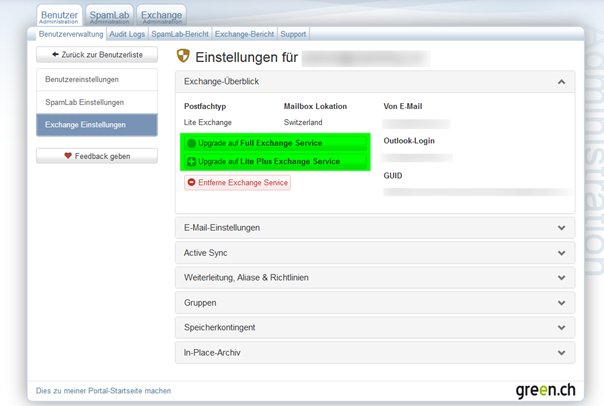
The mailbox upgrade is now complete.