
Hosted Exchange: Set Up an Email Account on Android (Lite+ & Full Licence)
Note: This help article applies only to Hosted Exchange with Lite Plus and Full licences. If you are not sure which email service you use, you can find further information in the following article.
https://www.green.ch/en/which-email-service-do-i-use
Hosted Exchange Lite Plus and Hosted Exchange Full support setup as an Exchange account on Android. This synchronises emails, calendars and contacts.
Hosted Exchange Lite is a POP/IMAP mailbox and does not support the full Exchange/MAPI functionality of Lite Plus and Full.
Requirements
- An active Hosted Exchange email address with a Lite Plus or Full licence
- The full email address
- The password for the Hosted Exchange mailbox
- An internet connection
If you do not know the password or need to reset it, you can find further information in the following article:
https://www.green.ch/en/reset-email-password-hosted-exchange
Set Up Hosted Exchange on Android
- Open the email app on your Android device.
- Select Add New Account.
- Enter your full email address and the associated password.
- Select Exchange as the account type.
- Open the advanced settings if required.
- Under Email Address, enter your full email address.
- Leave the Domain field empty.
- Under Username, enter your full email address.
- Under Password, enter the password for your Hosted Exchange mailbox.
- Under Exchange Server, enter ch.exg7.exghost.com.
- Enable Use Secure Connection (SSL).
- Tap Sign In.
- Confirm remote security administration with OK.
- If Android requires device administrator activation, confirm this by selecting Activate.
The names and order of the menus may differ depending on the Android version and email app used.
Synchronisation of Emails, Calendars and Contacts
When set up as an Exchange account, emails, calendars and contacts are synchronised using Exchange technology.
Do not set up a Lite Plus or Full mailbox as an IMAP or POP account if you want to use the full Exchange functionality. When set up using IMAP or POP, calendars, contacts and other Exchange features are not fully synchronised.
You can find further information about Hosted Exchange in the following article:
https://www.green.ch/en/all-about-hosted-exchange
Check the Connection Details
If setup does not work with the standard details, check the current connection details for the mailbox in EdgePilot.
You can find further information in the following articles:
https://www.green.ch/en/read-hex-connection-data-and-instructions/links
https://www.green.ch/en/email-connection-details-hosted-exchange
https://www.green.ch/en/hosted-exchange-guid-server-name
Setup Problems
If setup fails or the email app repeatedly asks for the password, first test signing in to Hosted Exchange Webmail. If sign-in works there, the mailbox, password and server access are generally available. The cause may then be the local device configuration or stored credentials.
If sign-in to Webmail also does not work, check the password and reset it if required.
You can find further information about Webmail and resetting the password in the following articles:
https://www.green.ch/en/reset-email-password-hosted-exchange
After changing the password, you must update the new password on all connected computers, mobile phones and other devices. Stored old passwords can cause further sign-in errors or the mailbox to be locked.
Note: If sign-in to Webmail works but setup on the Android device continues to fail, contact Support.
Related Articles
Set up Hosted Exchange on Apple iOS:
https://www.green.ch/en/hosted-exchange-lite-full-set-up-apple-ios
Set up Hosted Exchange in Outlook for Windows:
https://www.green.ch/en/hosted-exchange-automatically-set-up-lite-full-in-outlook
Set up Hosted Exchange in Outlook for macOS:
https://www.green.ch/en/outlook-macos-set-up-an-exchange-account-for-hosted-exchange
Information about secure passwords:
https://www.green.ch/en/secure-password
Questions / Unclear Points
- In documented individual cases, EXG7, the domain exg7.exghost.local or a specific Hosted Exchange username are listed as alternative details. It has not been confirmed for which Android versions, email apps or configurations these details are required.
- According to the source material, the specific Hosted Exchange username is not always visible in EdgePilot and may need to be clarified separately.
- The exact name of the default email app and the displayed menu items differs depending on the Android version and device manufacturer.
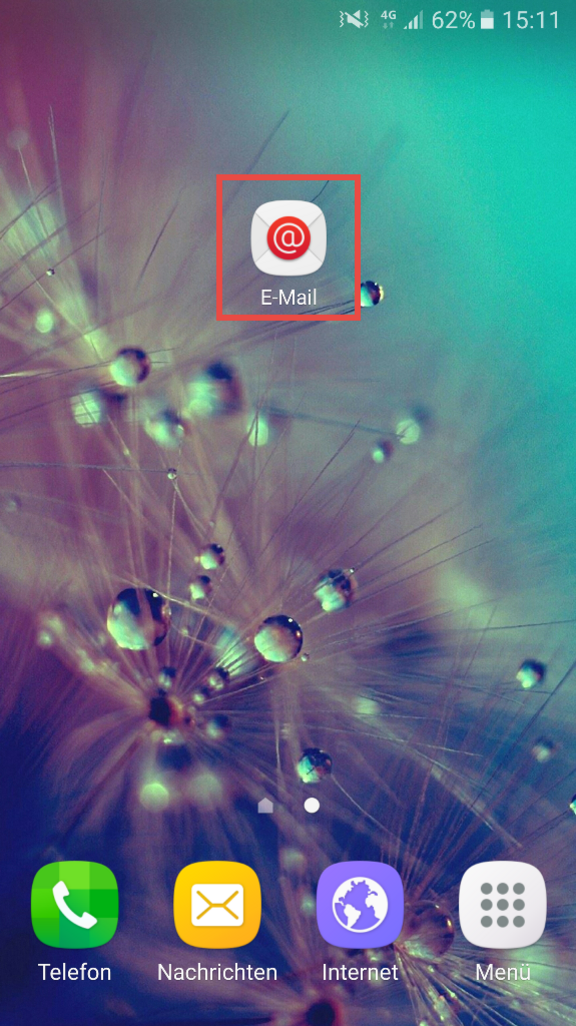
Open the Mail app on your smartphone.
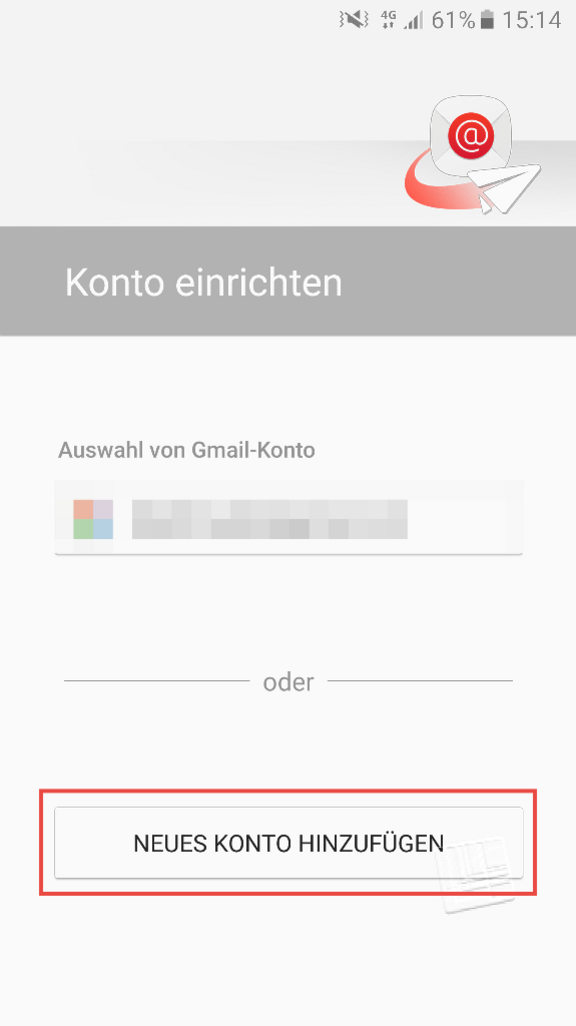
Select the option Add New Account.
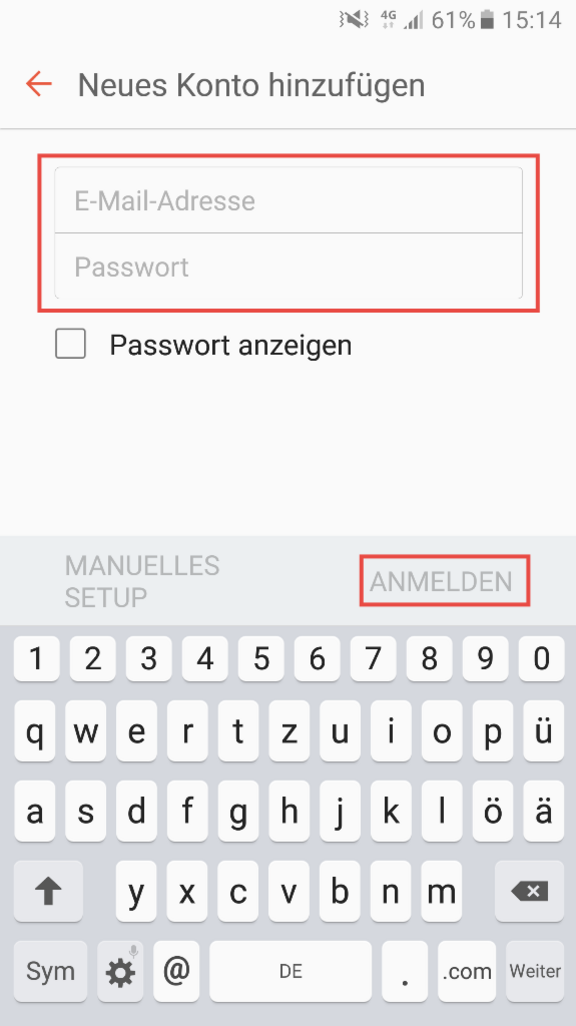
Enter your email address and password and click on Log in.
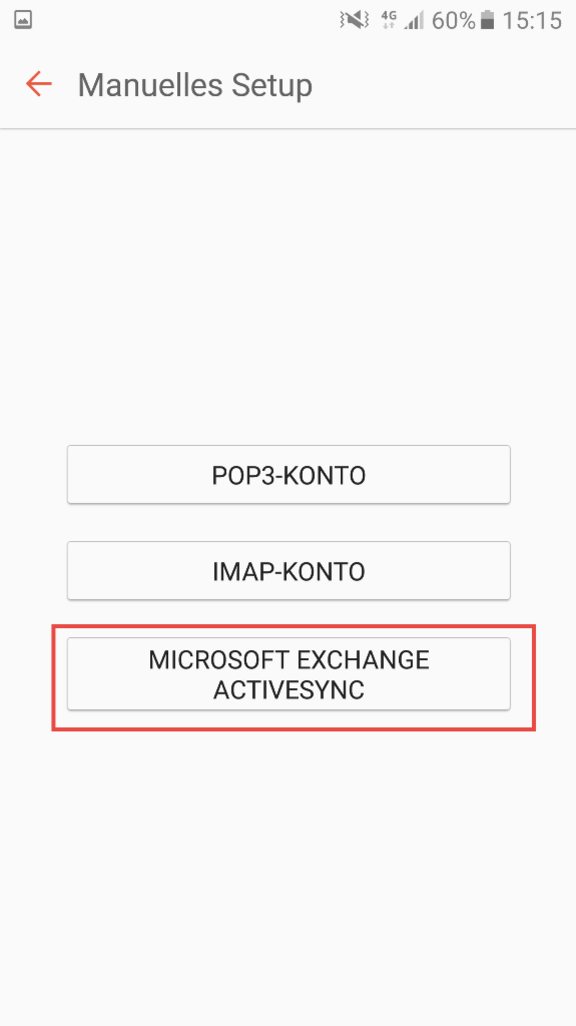
Select the option Exchange.
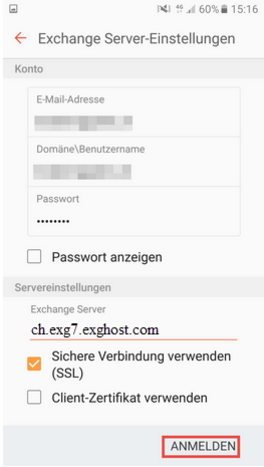
Use the following connection details:
- Email Address: enter your email address
- Domain: leave this field empty
- User name: enter your email address
- Password: enter your password
- Exchange Server: ch.exg7.exghost.com
- Use Secure Connection (SSL): active
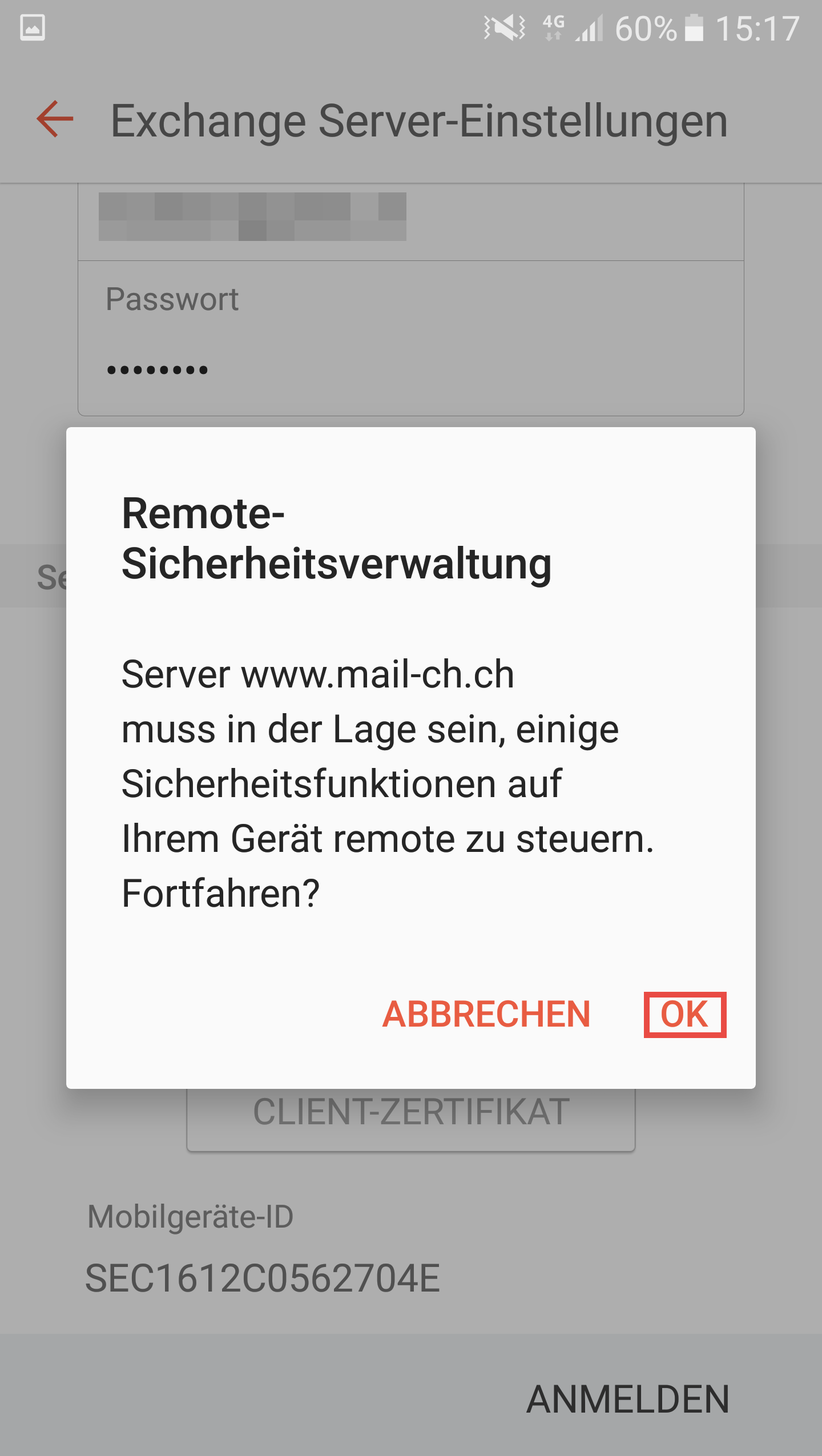
Accept the remote security warning by selecting OK.
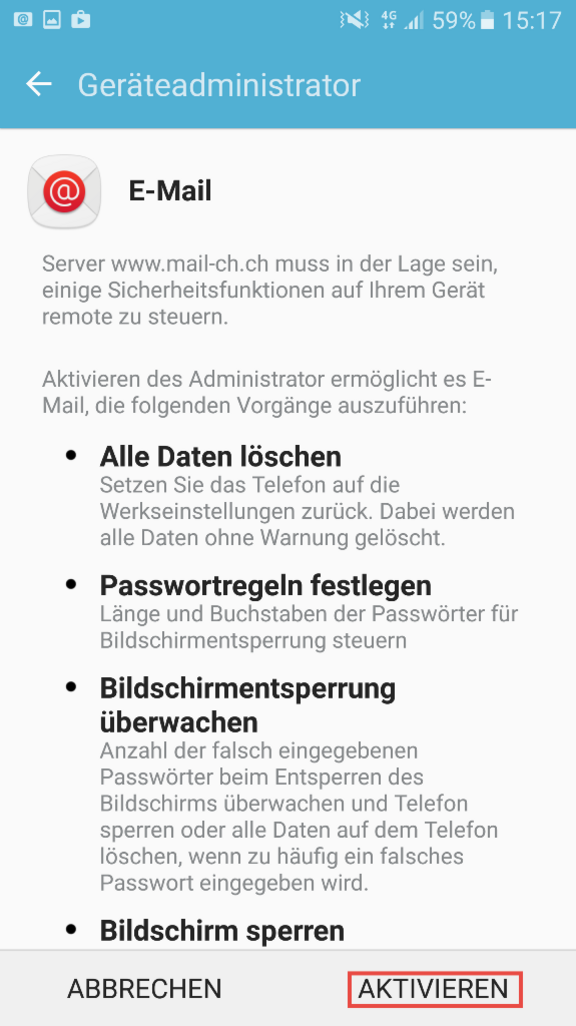
The activation of the device administrator is usually required. You can create this with Activate.