my.green.ch Customer Portal Guide
In the my.green.ch customer portal, you can manage your customer data, subscriptions, invoices, contacts and various product accesses.
The displayed sections and functions depend on the active subscriptions in your customer account. Therefore, the customer portal may look different for different customers.
Login
- Open the customer portal at https://my.green.ch/
- Log in with your MY username and password.
- Confirm the login using Two-Factor Authentication (2FA).
An SMS-capable phone number can be used to confirm the Two-Factor Authentication. This does not need to be a smartphone. Alternatively, you can use an authenticator application for a smartphone, Windows, macOS or Linux.
Using the “Sign in with Passkey” button, you can log in with your device’s PIN, fingerprint or facial recognition. This replaces password entry and manual confirmation of Two-Factor Authentication in a single step.
Further information about Two-Factor Authentication:
https://www.green.ch/en/enable-two-factor-authentication-2fa-in-your-customer-portal
Manage Password and Login
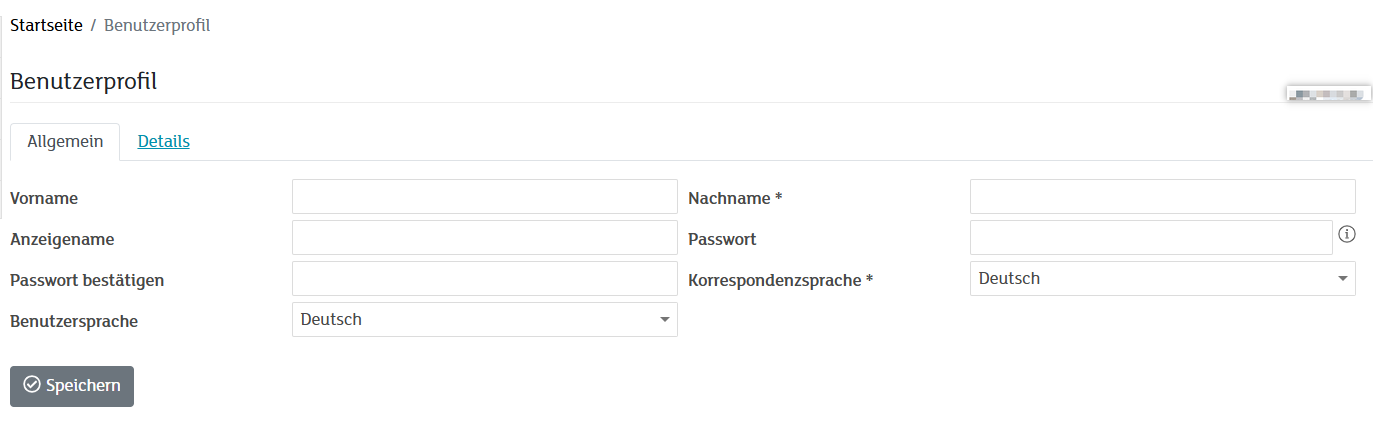
In the user profile, you can change your login name and password.
- Log in to my.green.ch with your MY username and password.
- Open the user profile.
- Change the login name or password.
Further information:
Reset Password
If you have forgotten your password, reset it via the login page.
- Open the my.green.ch login page.
- Select the password reset function.
- Follow the instructions on the screen.
Further information:
https://www.green.ch/en/how-to-reset-mygreench-password
Locked MY User
A MY user can be locked if the password has been entered incorrectly multiple times. This can be caused by your own login attempts, login attempts by another person, or accidentally entering an incorrect MY username.
Note: If your MY user is locked and you can no longer log in, please contact support.
Further information:
https://www.green.ch/en/my-user-unlock
Generally Available Sections
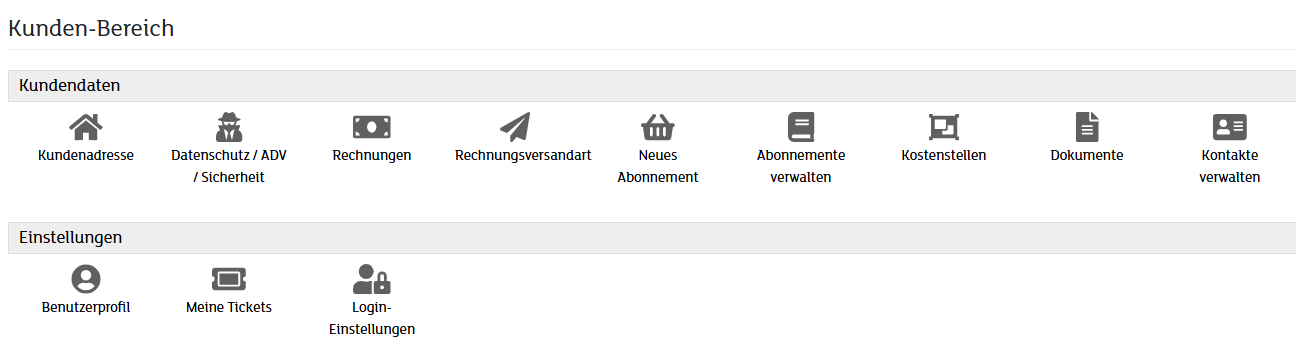
The “Customer Data” and “Settings” sections are generally available to all customers.
Customer Data
In the “Customer Data” section, you can use the following functions, among others:
- Change customer address
- Download invoices
- Manage invoice delivery method
- Order new subscriptions
- Manage existing subscriptions
- Manage cost centres
- View documents
- Manage contacts
Change Customer Address
Keep your customer data up to date. Under “Customer Address”, you can change the following information:
- Telephone number
- Email address
- Billing address
- Delivery address
Further information:
https://www.green.ch/en/mygreen-customer-data
https://www.green.ch/en/changing-my-address-in-the-mygreen-user-console
Invoices
In the customer portal, you can view your invoices and credit notes. In the “Customer Data” section, you can also download invoices and manage the invoice delivery method.
Further information:
https://www.green.ch/en/where-can-i-find-my-invoices
Manage Contacts and Access Rights
Under “Manage Contacts”, you can create additional users and contacts for your customer account. Whenever possible, use separate user accounts with appropriate permissions instead of sharing the main account.
This may be relevant, for example, for the following people or roles:
- IT service providers
- Employees
- Trustees or accountants
Proceed as follows:
- Log in to my.green.ch using your MY username and password.
- Open “Manage Contacts”.
- Create a new contact with its own email address and password.
- Open the “Access Rights” section.
- Enable the required permissions.
For an IT contact, for example, the permission “Manage subscriptions/services” can be assigned. For an accountant or trustee, the “Invoices” permission can be used. Additional information about a permission is displayed when you move the mouse pointer over the information icon.
Further information:
https://www.green.ch/en/manage-contacts-inside-of-your-customer-portal
Settings
In the “Settings” section, you can use the following functions, among others:
- Edit user profile
- View my tickets
- Manage login settings
Tickets and Support Requests
You can create and manage support requests via the customer portal. Existing requests remain visible in the ticket history. There, you can check the processing status and reply to existing requests.
Further information:
https://www.green.ch/en/how-to-create-a-ticket-in-the-customer-portal
Product-Dependent Sections
Product Categories
Depending on the active subscriptions, different product categories are displayed in the customer portal. The most common categories include:
- Shared Hosting
- Internet Access
- Telephony
Shared Hosting
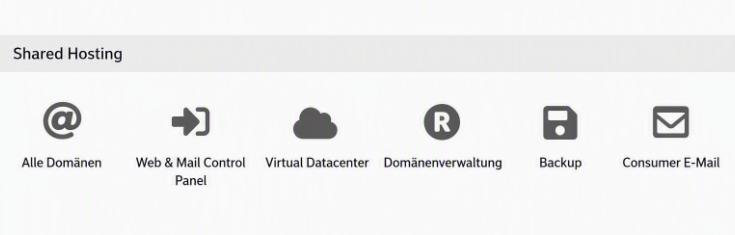
The “Shared Hosting” section is displayed when active hosting products are available.
Depending on the product, the following functions may be available:
- All Domains
- Web & Mail Control Panel
- Domain Management
- Consumer Email
- Backup
Technical settings for hosting products are primarily managed in the Web & Mail Control Panel.
This may include the following sections:
- Email Accounts
- DNS Settings
- Websites
- Web Hosting Settings
- WordPress Management
- FTP Access
- Databases
- Additional Hosting Functions
Further information about accessing the Web & Mail Control Panel:
https://www.green.ch/en/access-the-web-and-mail-control-panel
Manage Domains
Depending on the product, you can manage domains in the customer portal. The available functions may include the following actions:
- Register a Domain
- Transfer a Domain
- Manage Nameservers
- Manage DNS Records
- Assign a Domain to Hosting
- Manage Domain Forwarding
Further information:
https://www.green.ch/en/domains
https://www.green.ch/en/order-domain-in-mygreen
https://www.green.ch/en/dns-records-manage
https://www.green.ch/en/change-nameservers
https://www.green.ch/en/assign-domain-to-hosting-package
Internet Access
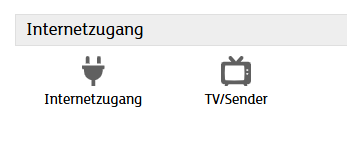
The “Internet Access” category is displayed when active internet products are available. Depending on the subscription, the “Internet Access” and “TV/Channels” sections may appear there.
Telephony
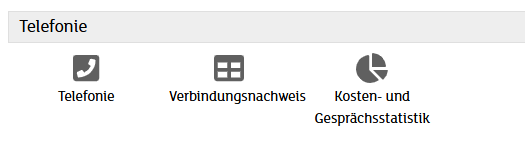
The “Telephony” category is displayed when active telephony products are available. Depending on the subscription, functions such as “Telephony”, “Call Records” and “Cost and Call Statistics” may be available there.